All CA practice menus
- Getting started
- Clients and onboarding
- Bookkeeping
- Bank reconciliation
- GST returns
- TDS
- Month-end and statements
- Your practice: calendar, fees and time
- The client app
Bookkeeping
For: Accountants, article assistants
Sales, purchases, receipts, payments and journals for each client. GST and TDS are worked out on the documents themselves, so the returns come straight from the books.
New here? Start with Getting started.
Videos
A sales invoice with GST 0:53
Record a client's sale; GST is worked out for you.
Transcript
Hi, I'm Zuzu. Let's record a sale for one of your clients.
In Bookkeeping, click New Sales Invoice.
Choose the client company first, then their customer.
Add the items and quantities. Rates come from the client's price list.
The GST template comes from the place of supply: CGST and SGST within the state, IGST between states.
Save and submit to post it. It flows straight into the client's ledger and their GSTR-1.
That's it! Need a hand? Visit zenoziva.com
A purchase bill with TDS 0:47
Set TDS once on the supplier; every bill deducts it.
Transcript
Hi, I'm Zuzu. Rent, professional fees and contractors need TDS. Here's how bills handle it for you.
Set the TDS category on the supplier once. For example, rent.
Then enter their bills as usual, with the supplier's bill number and date exactly as on the bill.
Above the threshold, the bill deducts TDS by itself and shows it under taxes deducted. It's ready for the TDS reports and the quarterly return.
That's it! Need a hand? Visit zenoziva.com
Receipts, payments and the ledger 0:55
Money in and out, matched to invoices, and every posting in the ledger.
Transcript
Hi, I'm Zuzu. Let's record a client's receipt against their invoice, and see it in the ledger.
In Bookkeeping, open Unpaid sales invoices, and pick the one that was paid.
Click Create, then Payment. The reference number is the bank's UTR or the cheque number. Bank reconciliation matches on it later.
Save and submit.
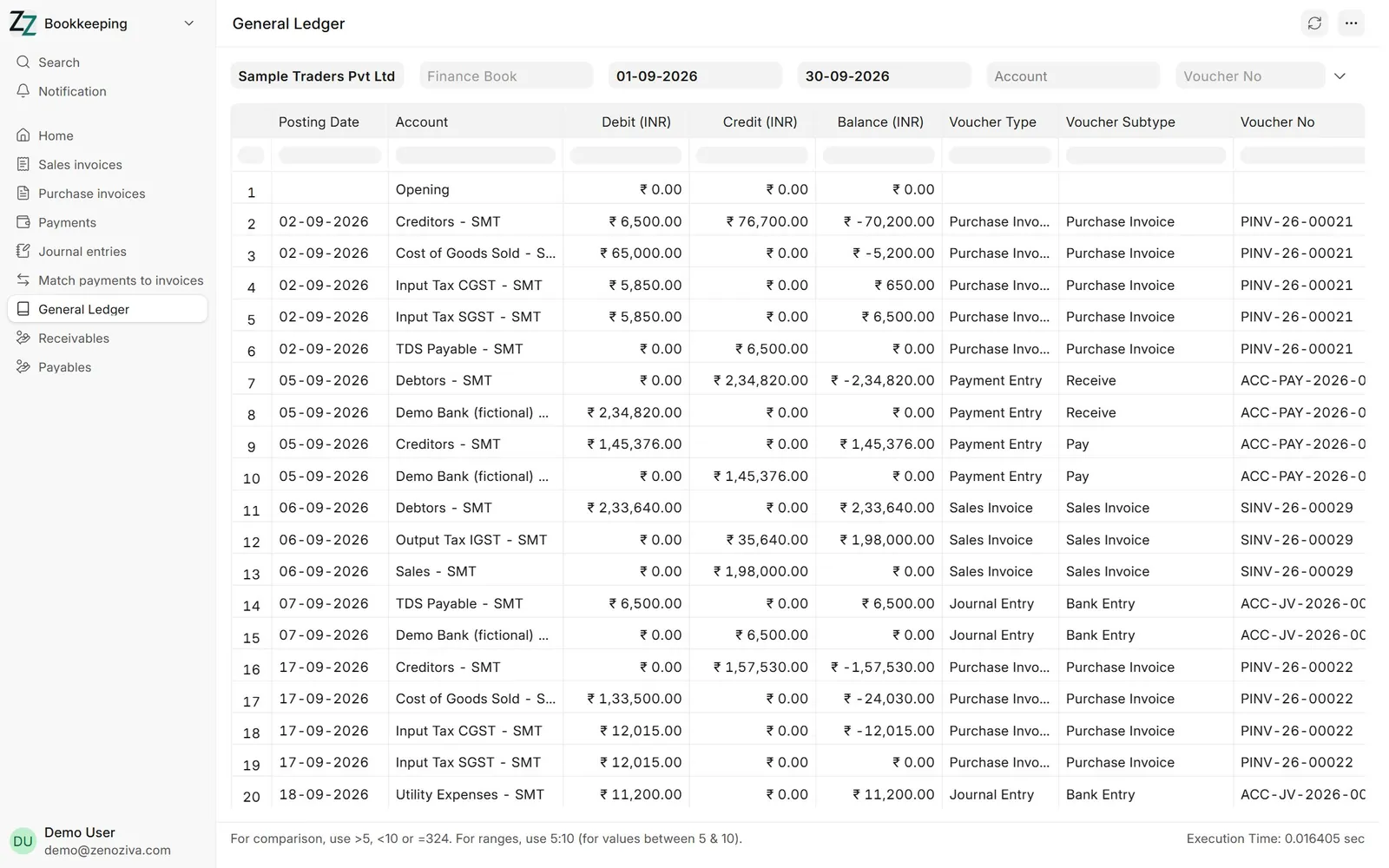
The General Ledger shows every posting for a company and period, with the voucher behind each line. Journal entries for salaries, provisions and adjustments show here too.
That's it! Need a hand? Visit zenoziva.com
Step by step
1The Bookkeeping menu#
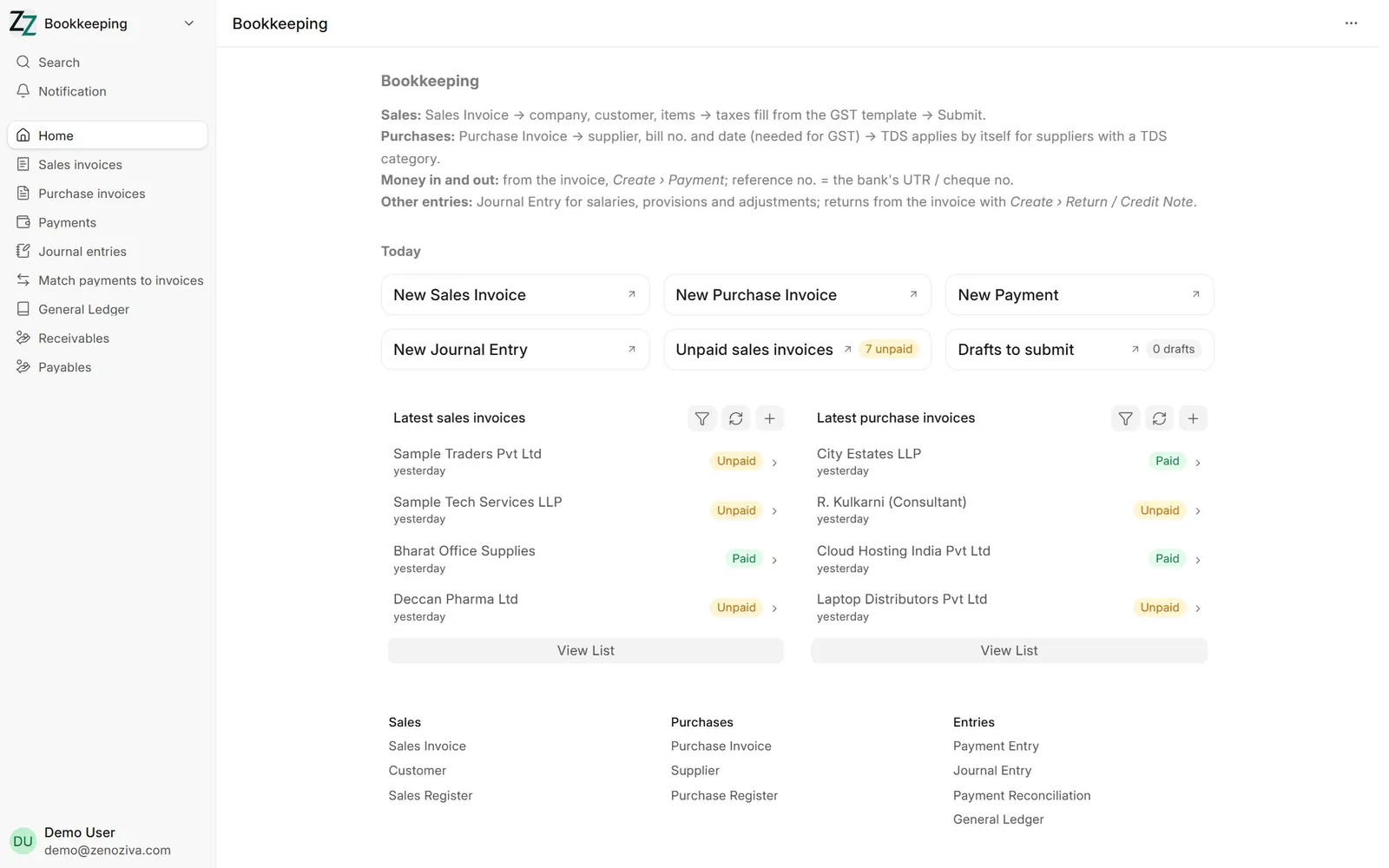
New documents, unpaid invoices, drafts waiting to be submitted and the latest sales and purchases across clients.
2Sales invoice#
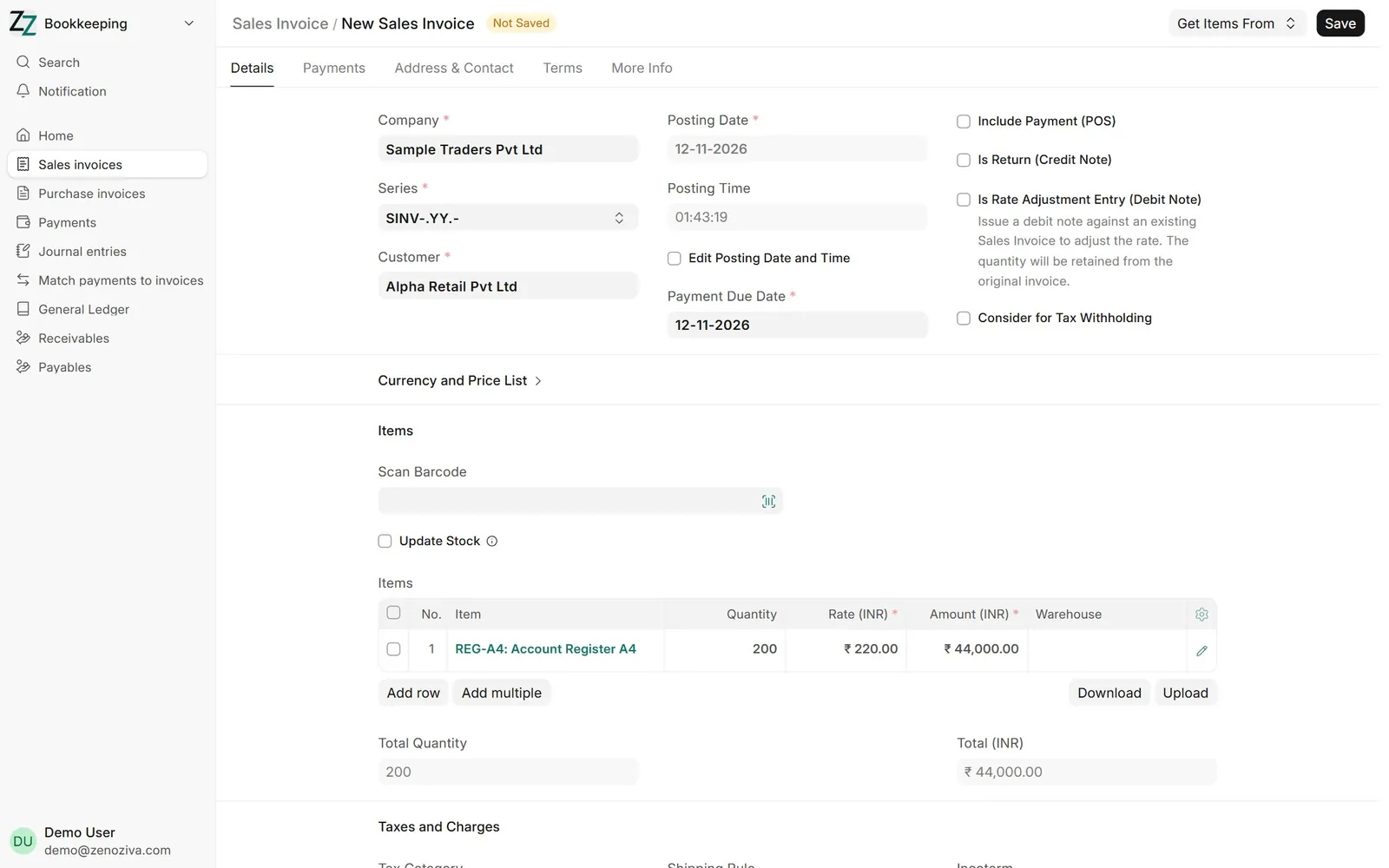
New Sales Invoice: choose the client company, the customer and the items. Rates come from the price list.
3GST on the invoice#
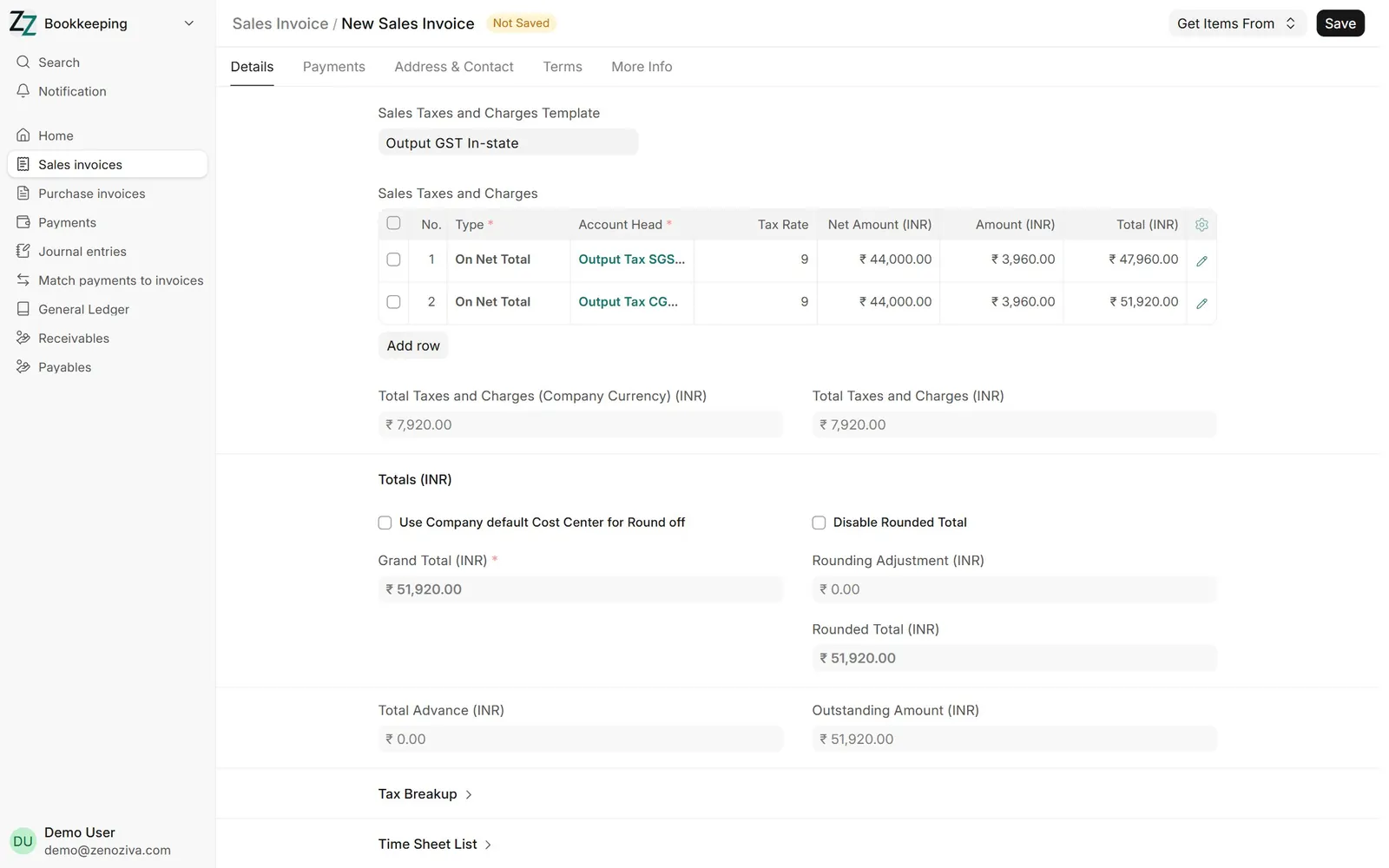
The GST template is picked from the place of supply: CGST and SGST within the state, IGST between states. Submit to post it.
4Purchase invoice#
Enter the supplier's bill number and date exactly as on the bill; GST reconciliation matches on them.
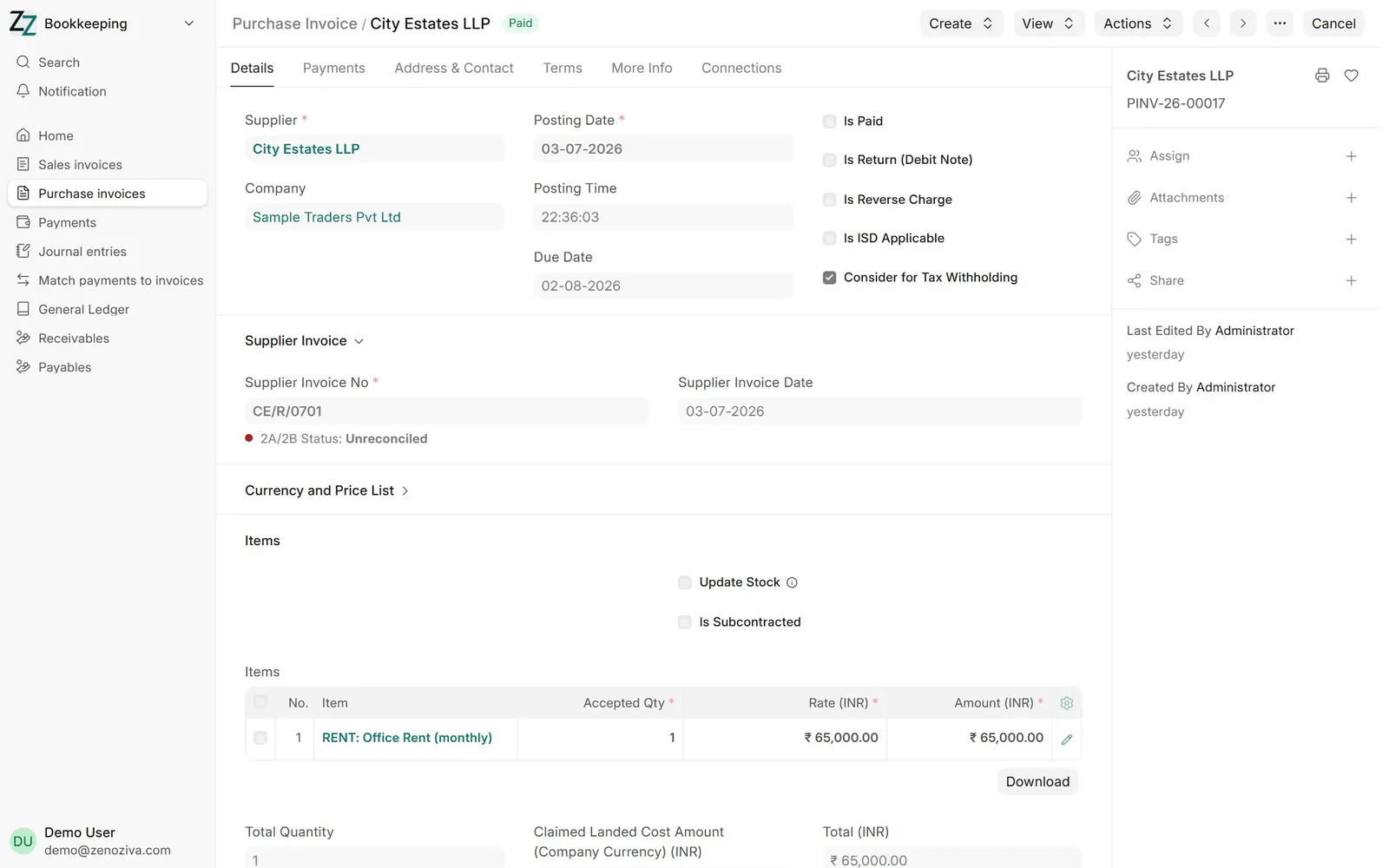
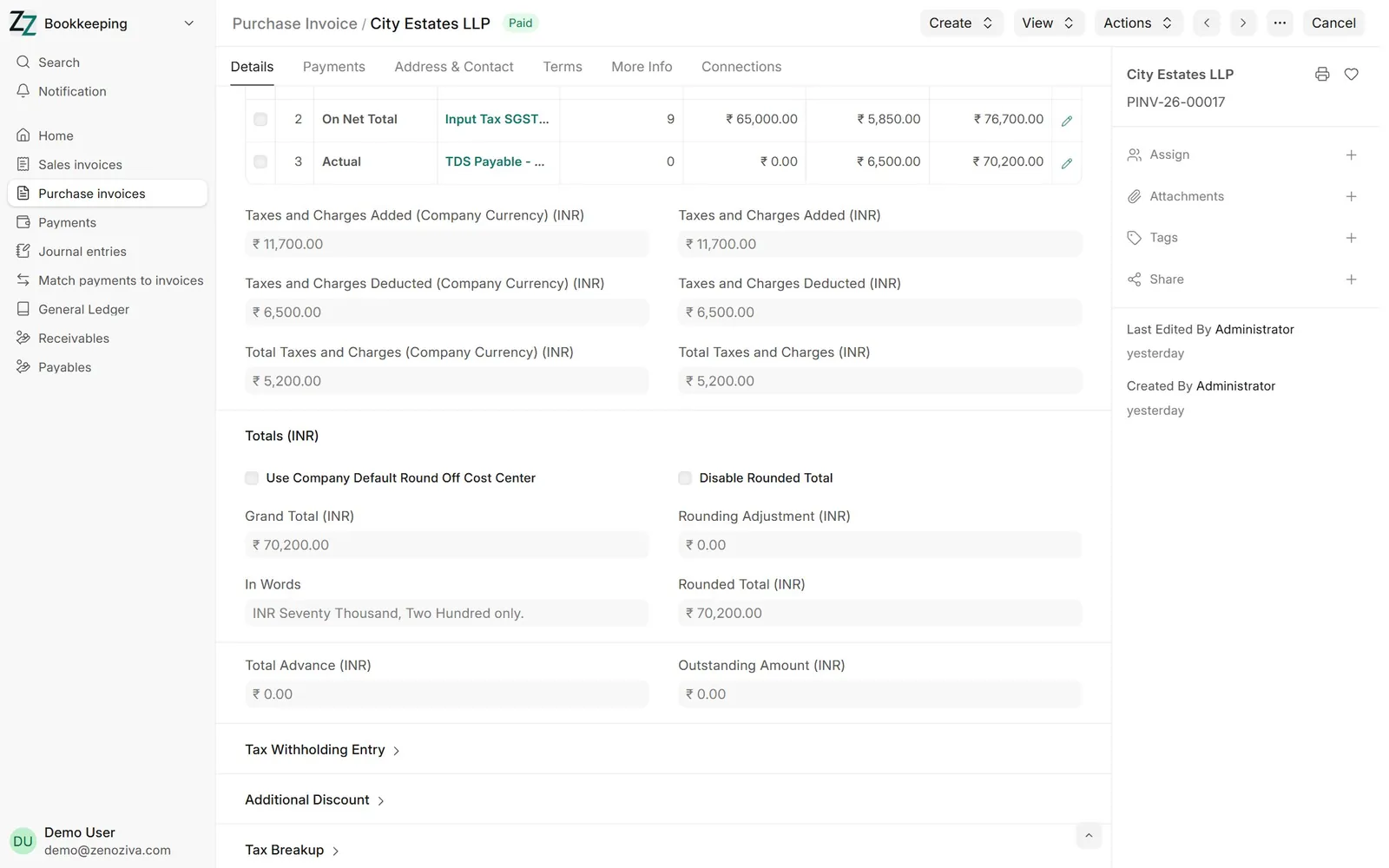
5TDS on purchases#
For a supplier with a TDS category (here rent), the invoice deducts TDS by itself above the threshold and shows it under taxes deducted.
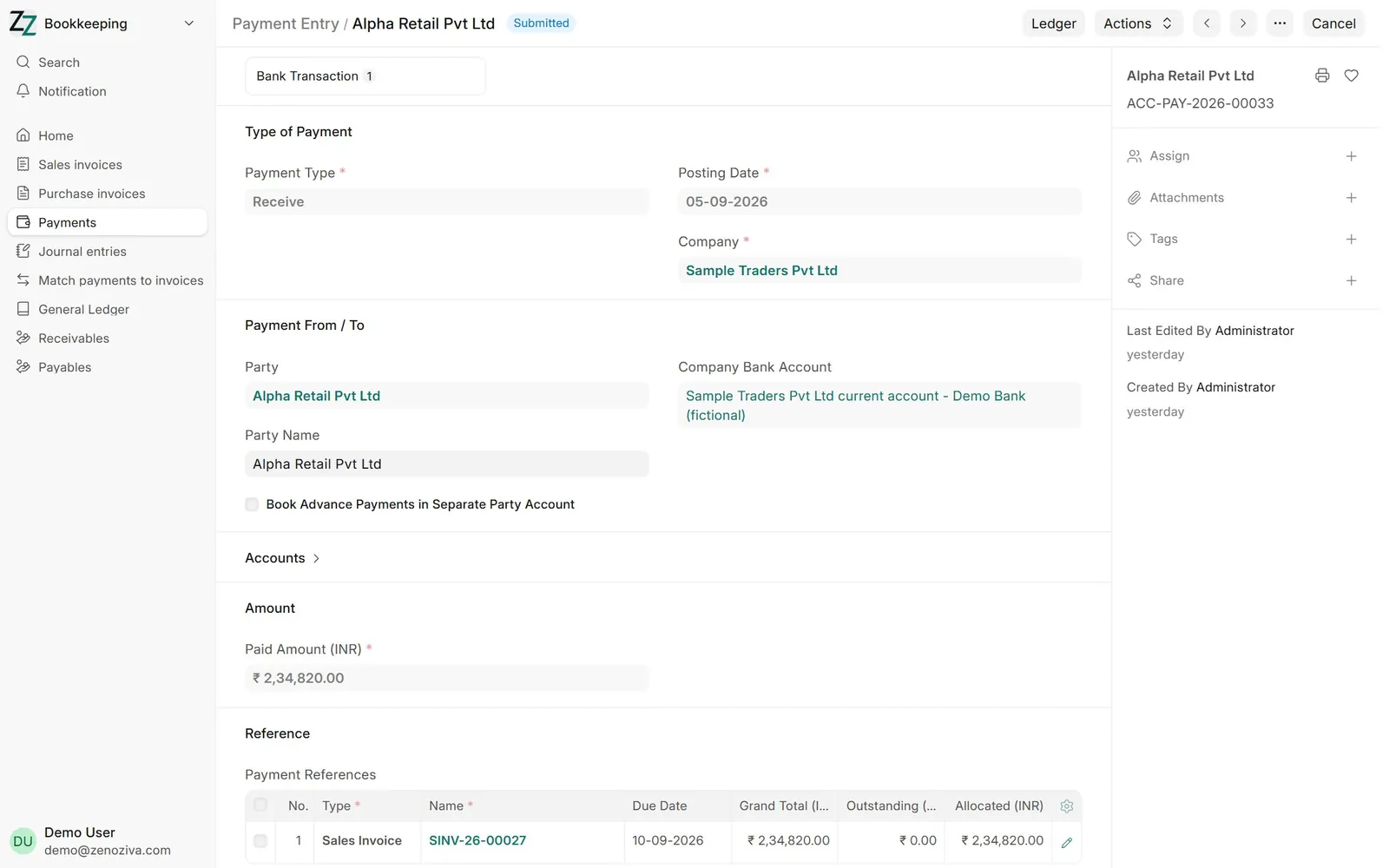
6Receipts and payments#
From an invoice, Create › Payment. The reference number is the bank's UTR or cheque number; the bank reconciliation matches on it.
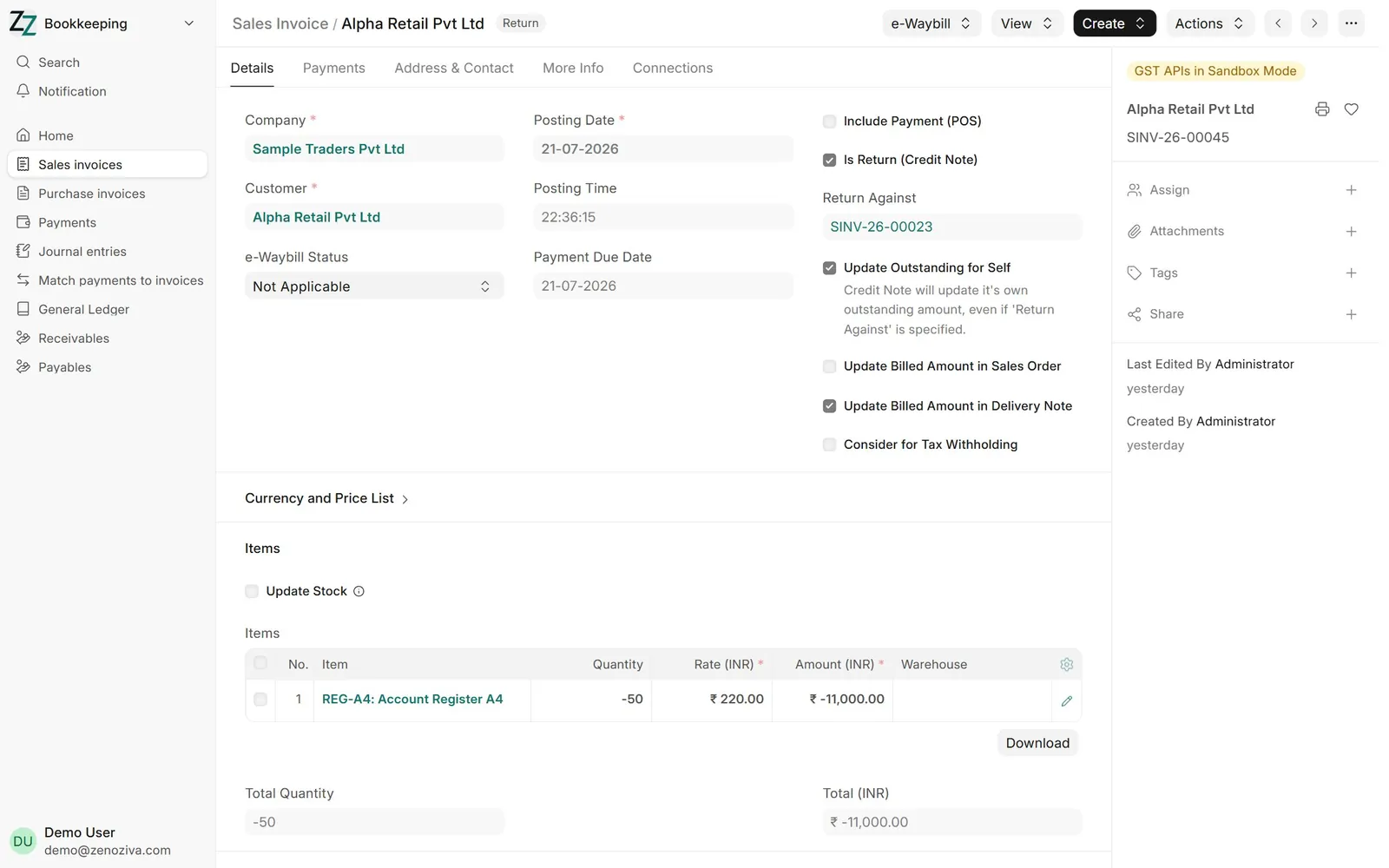
7Credit and debit notes#
From the original invoice, Create › Return / Credit Note. Purchase returns work the same way as debit notes.
8Journal entries#
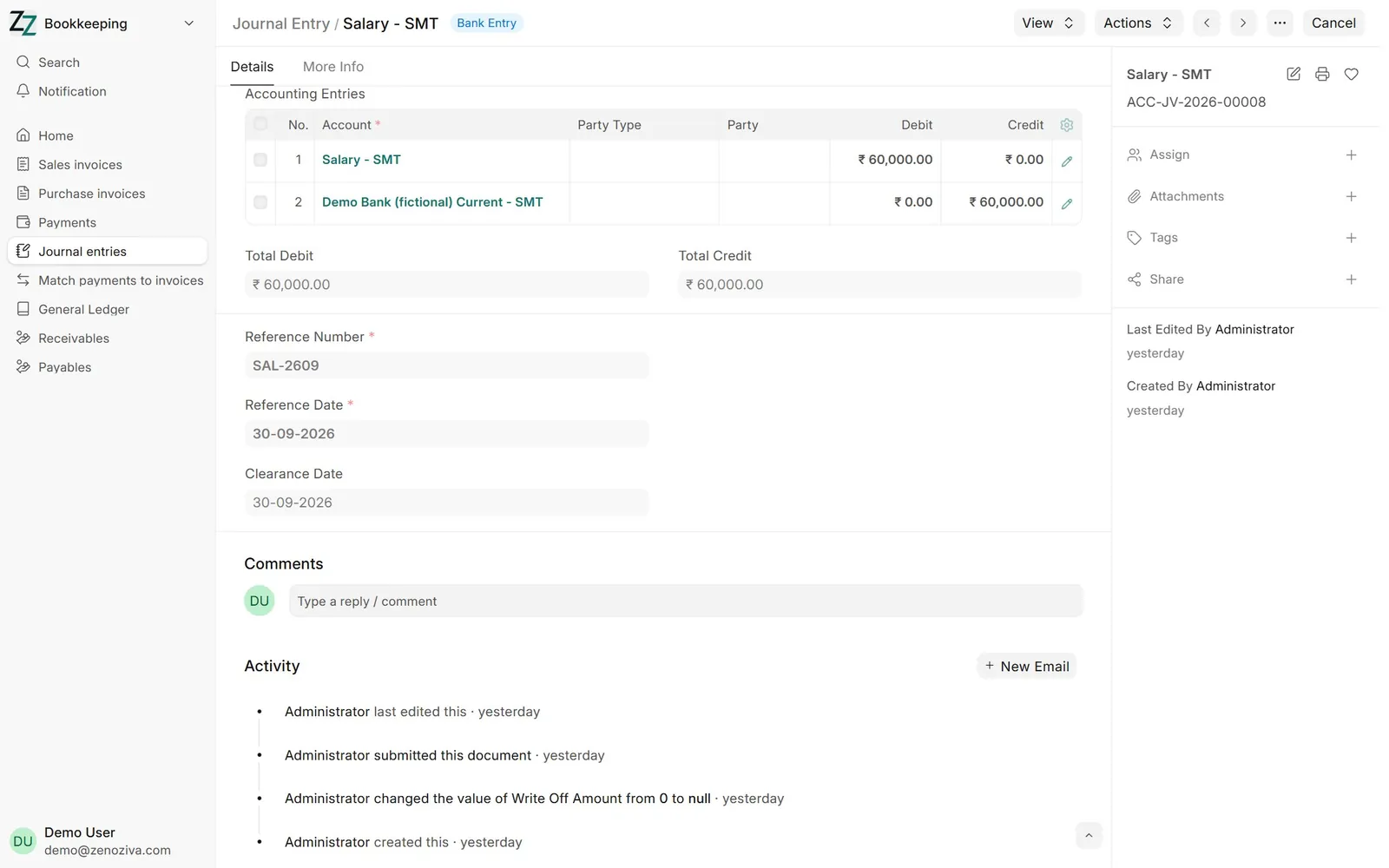
Salaries, provisions, adjustments: a Journal Entry with its debit and credit lines. Bank entries carry the bank reference.
9General Ledger#
Every posting for a company and period, with the voucher behind each line. Click a voucher to open it.