All IT solutions menus
- Getting started
- Business overview
- Sales & quotes
- Purchase
- Stores & serials
- Projects & installation
- Service & AMC
- Accounts & GST
- Team, attendance and payroll
- The Zenoziva HR app
Accounts & GST
For: Accountant
Invoice supply at delivery and installation at handover, collect against invoices, pay distributors, and prepare GST returns.
New here? Start with Getting started.
Videos
Enter the distributor's bill 0:44
Their bill, matched to what you received, ready for GST input credit.
Transcript
Hi, I'm Zuzu. The distributor has sent their bill. Let's enter it, matched to what you received.
In Purchase, open Receipts, and pick the delivery this bill is for.
Click Create, then Purchase Invoice. Type the distributor's invoice number and date, exactly as on their bill.
Save and submit. GST input credit is matched on that invoice number; the status below it shows if it appears in your GSTR-2B.
That's it! Need a hand? Visit zenoziva.com
Invoice the customer 0:47
A GST invoice from the delivery, with any advance adjusted.
Transcript
Hi, I'm Zuzu. The goods have reached the customer. Time to invoice them.
Open the delivery. You can also invoice from the sales order.
Click Create, then Sales Invoice. Items, prices and the customer's GST details are copied across.
GST is worked out on every line, from each item's HSN or SAC code.
Save and submit. The banner reminds you when an e-way bill is due. Once your GST account is connected, the e-invoice and e-way bill are made from here.
That's it! Need a hand? Visit zenoziva.com
Record a payment 0:55
Money in, matched to the invoice it pays.
Transcript
Hi, I'm Zuzu. A customer has paid. Let's record it against their invoice.
In Accounts and GST, open Unpaid invoices, and pick the one they paid.
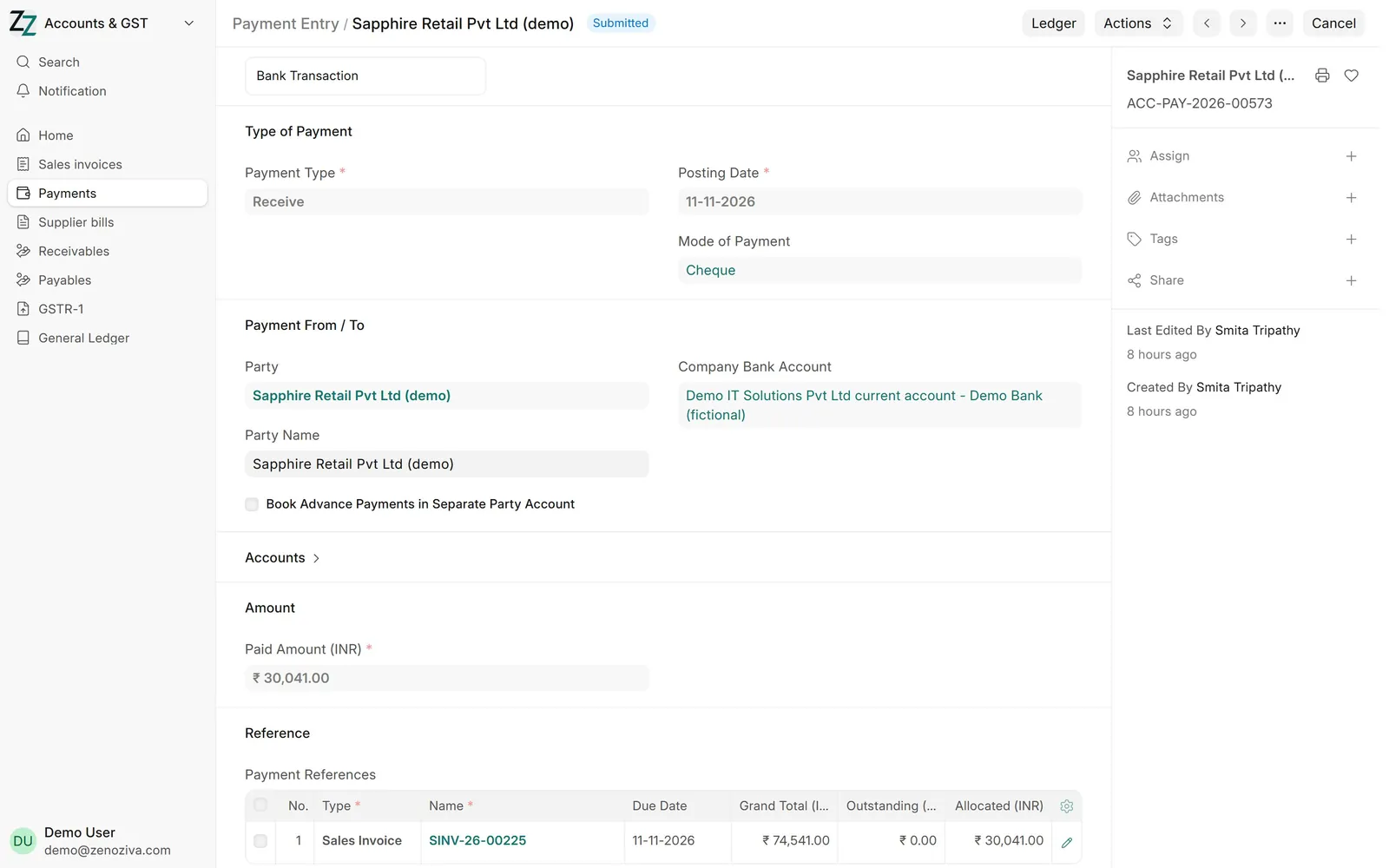
Click Create, then Payment. Check the amount, and add the bank reference. Below, you see which invoice it settles. A part payment leaves the rest outstanding.
Save and submit. The invoice is now marked paid.
Overdue invoices shows who to call next.
That's it! Need a hand? Visit zenoziva.com
GST before filing 0:39
Check the month's GST, then prepare GSTR-1.
Transcript
Hi, I'm Zuzu. Before you file, let's check the month's GST.
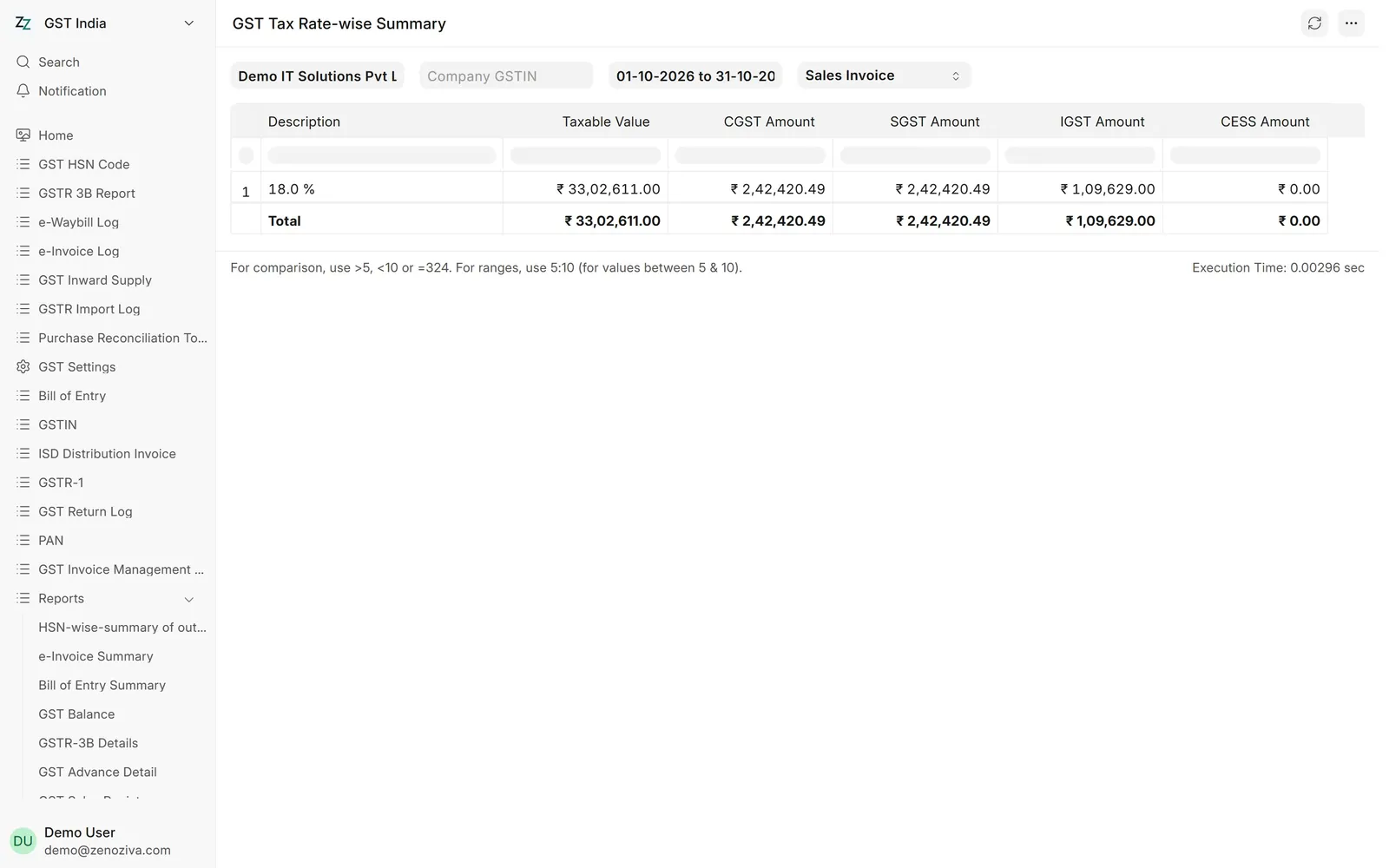
The GST summary report shows the month's sales by tax rate.
Taxable value, then central, state and integrated tax. A quick check that nothing is missing.
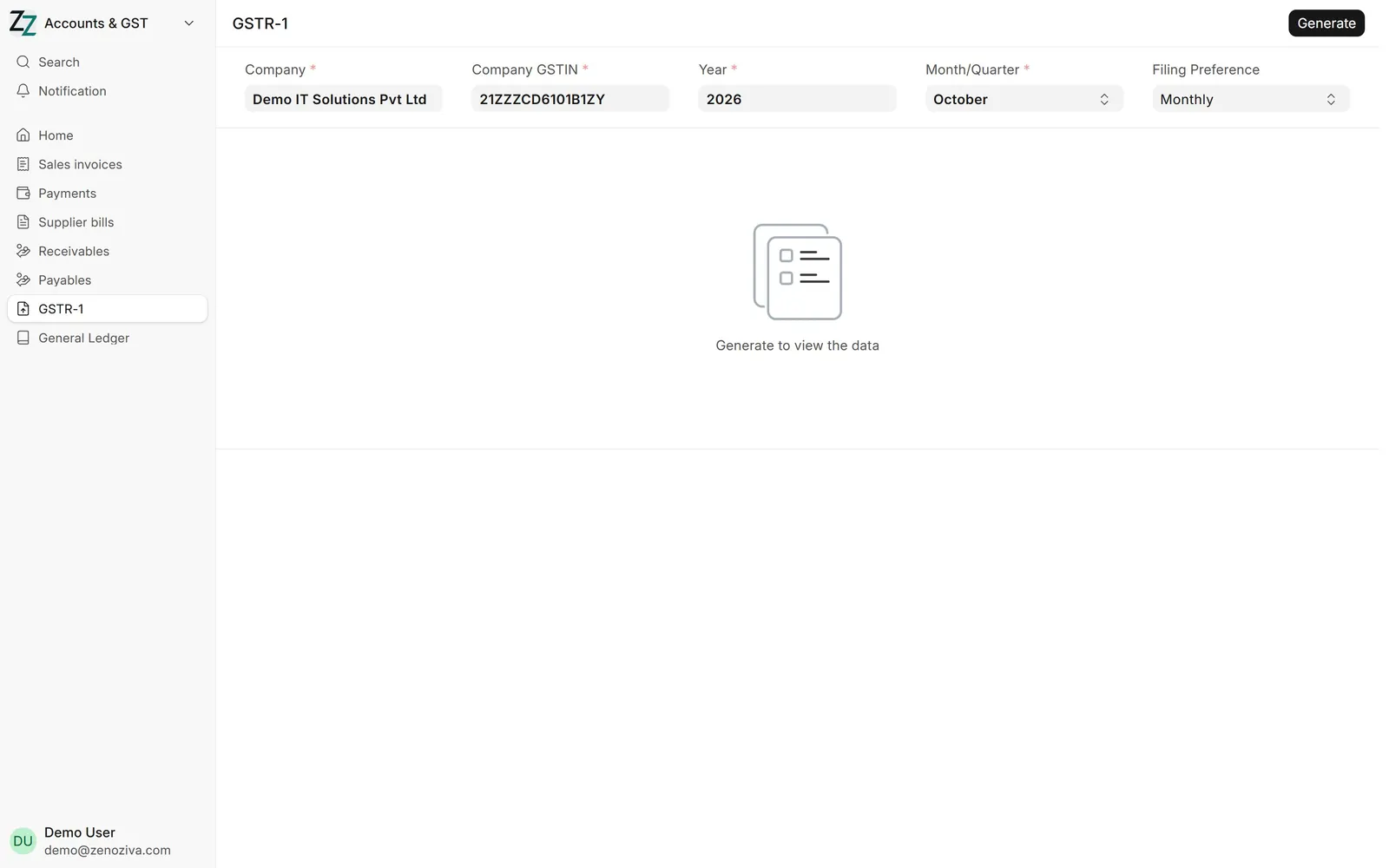
Then open GSTR-1, choose the month, and click Generate. Sales are grouped the way the GST portal needs them, ready to download for filing.
That's it! Need a hand? Visit zenoziva.com
Step by step
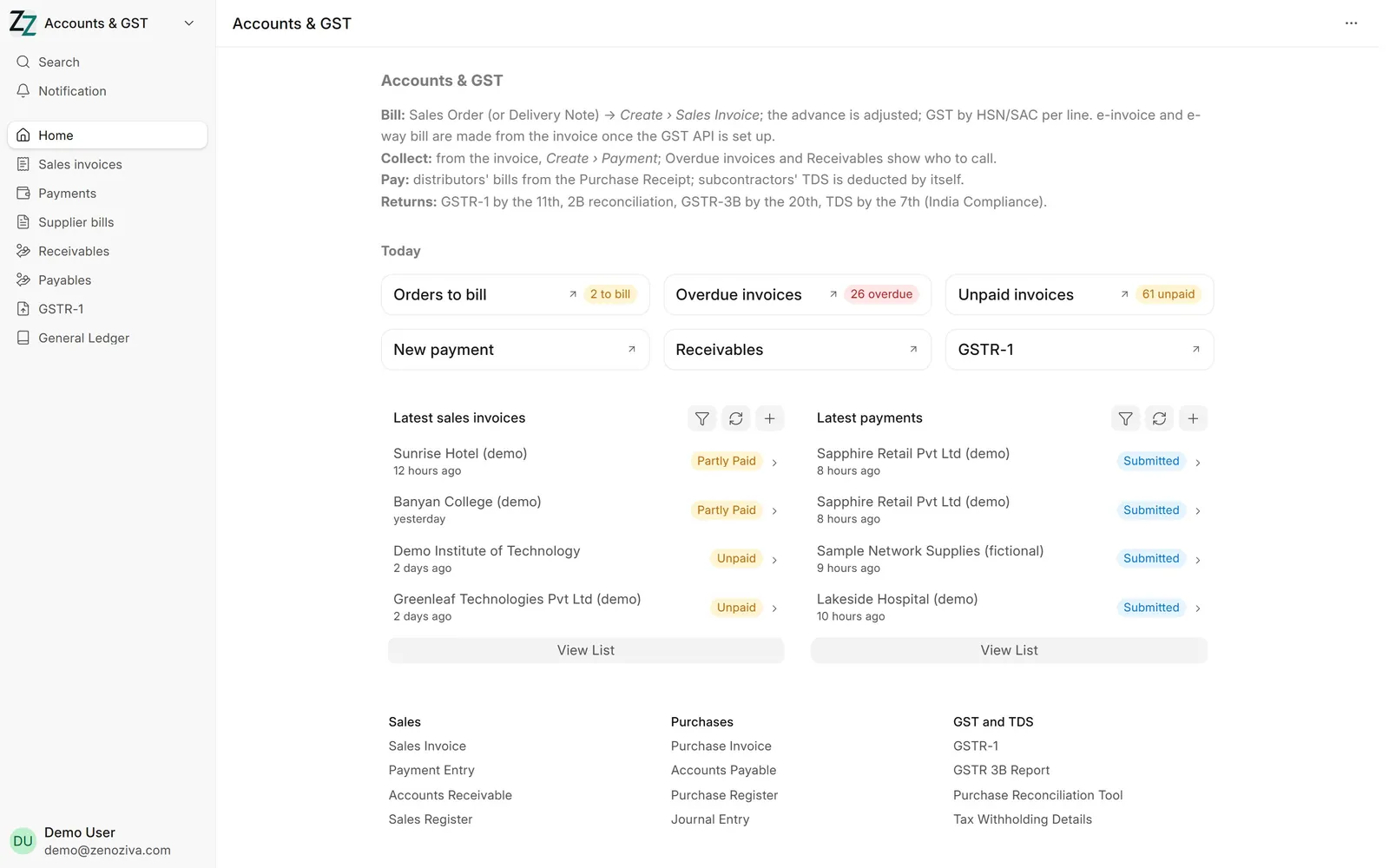
1The Accounts & GST menu#
Orders to bill, Overdue invoices, Unpaid invoices, New payment, Receivables and GSTR-1.
2Sales invoice#
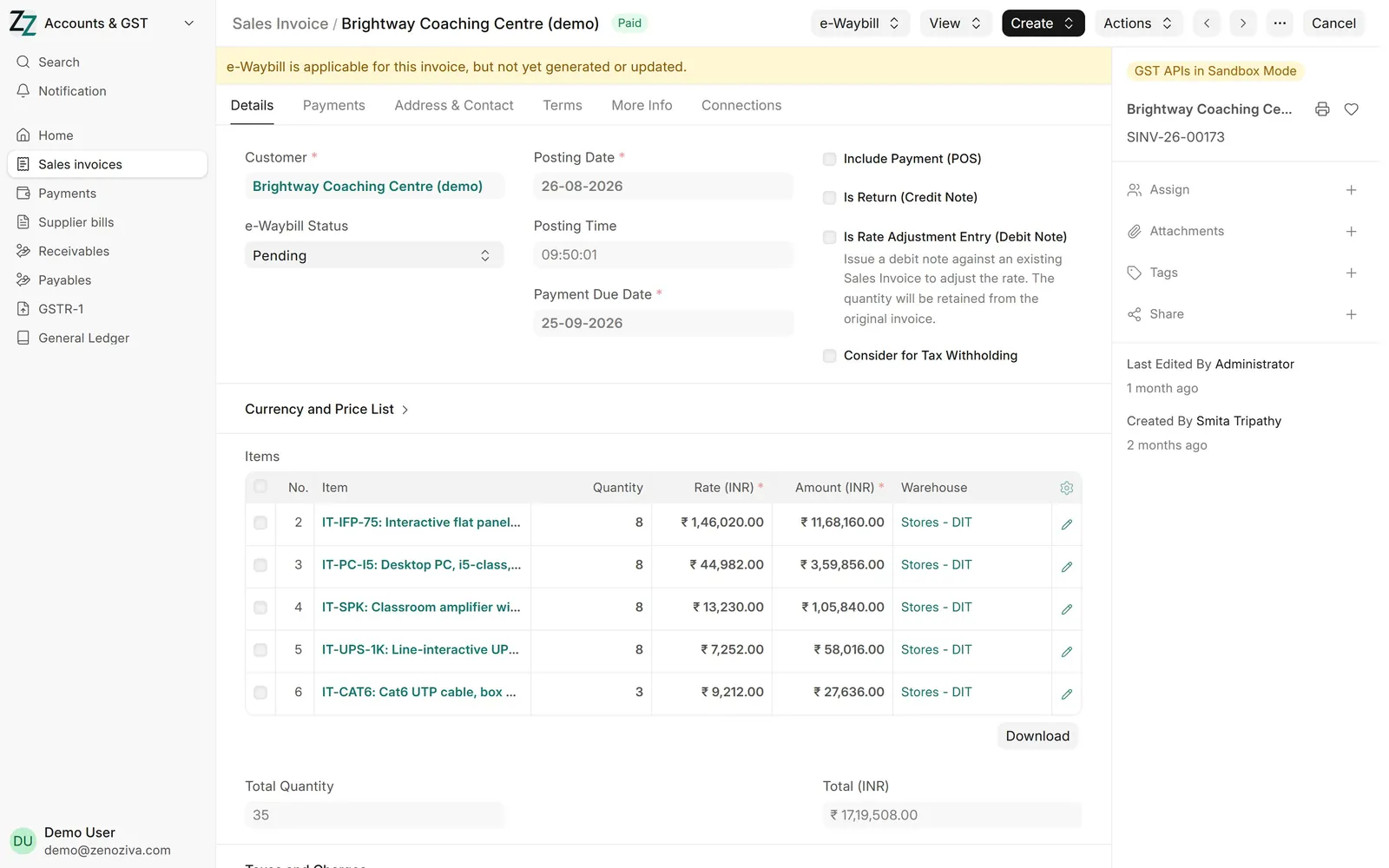
From the sales order or delivery note, Create › Sales Invoice. GST comes from each item's HSN or SAC code; an advance already received is adjusted. The banner reminds you when an e-way bill is due.
e-invoice and e-way bill are made from the invoice once your GST API account is connected (pay per use). On the demo the GST connection is in test mode.
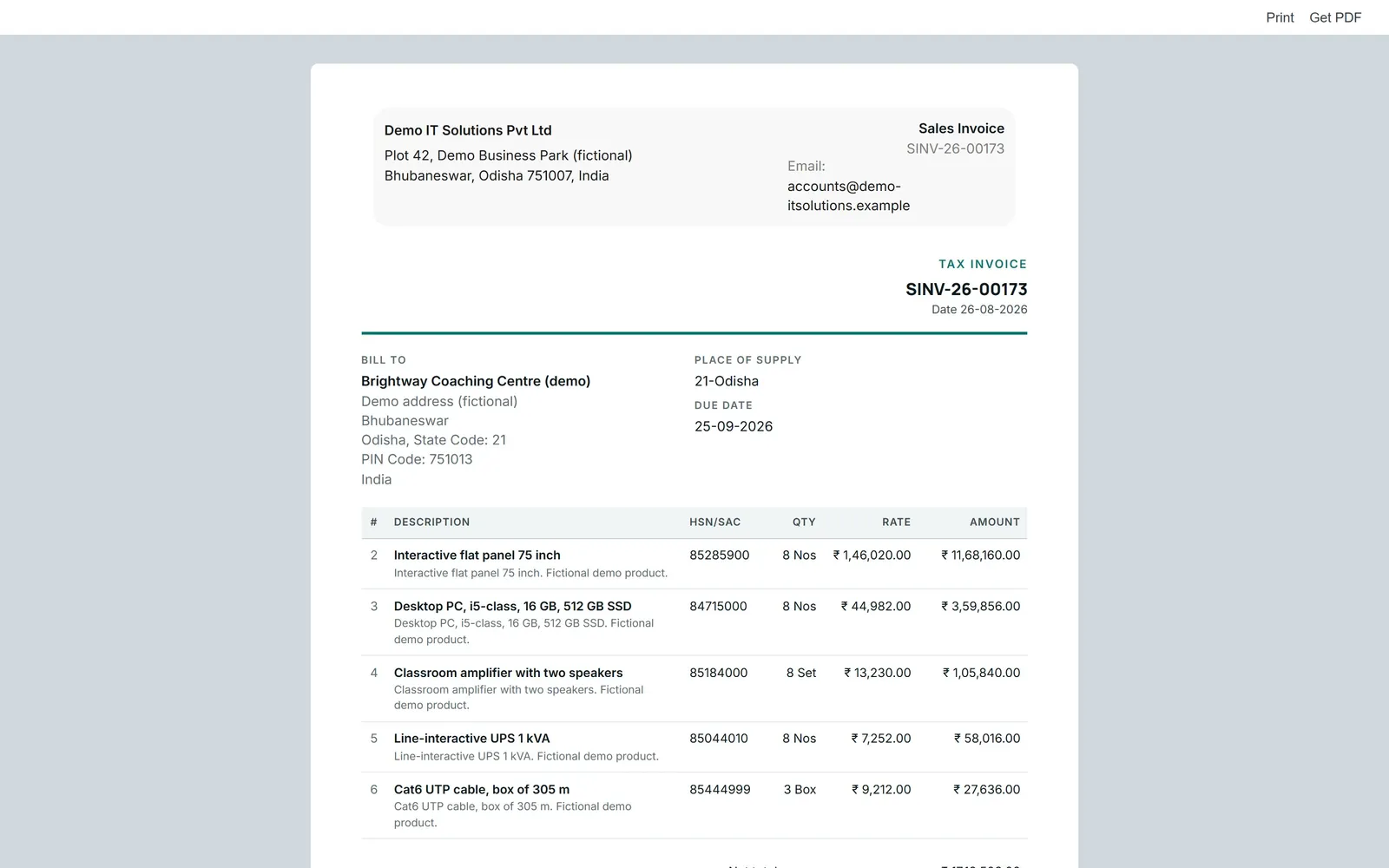
3The invoice on your letterhead#
Tax invoice with GSTIN, HSN/SAC, tax per line and totals, ready to print or send.
4Record a payment#
From the invoice, Create › Payment: the bank account, mode and amount. Payment References shows which invoices it settles; part-payments leave the rest outstanding.
5GST summary#
Taxable value with CGST, SGST and IGST by rate for a month: a quick check before filing.
6GSTR-1#
Choose the month and Generate: outward supplies are grouped the way the GST portal needs them, ready to download for filing. GSTR-3B and the 2B reconciliation are linked from the Accounts & GST menu.
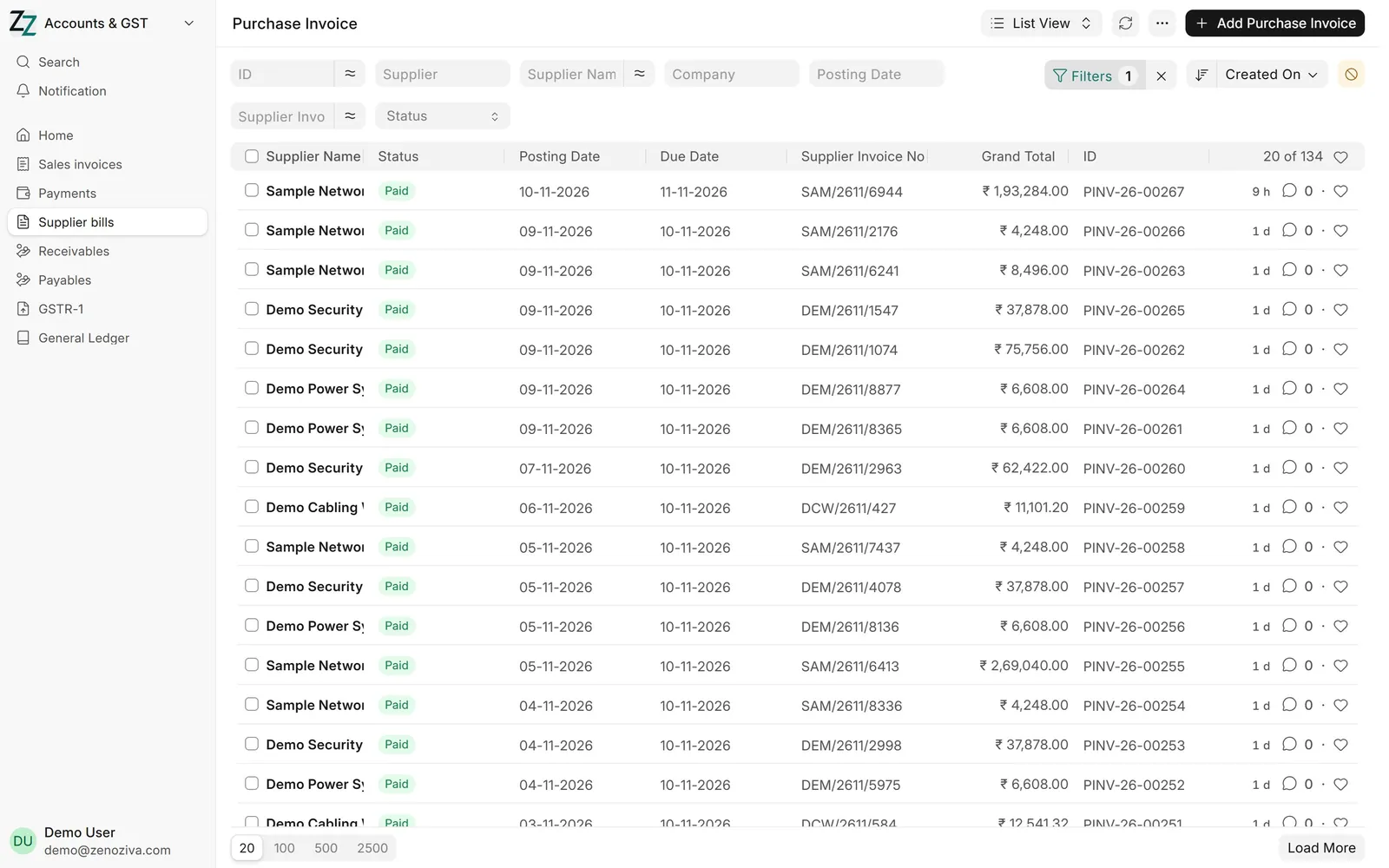
7Supplier bills#
Every distributor's and subcontractor's bill with its status: paid, unpaid or overdue. Pay from the bill with Create › Payment; Payables in the sidebar shows what you owe each supplier, by age.