All IT solutions menus
- Getting started
- Business overview
- Sales & quotes
- Purchase
- Stores & serials
- Projects & installation
- Service & AMC
- Accounts & GST
- Team, attendance and payroll
- The Zenoziva HR app
Sales & quotes
For: Sales team, sales manager
An enquiry becomes a quotation that reads like a bill of quantities: hardware, kits, cabling, installation and AMC lines, with GST worked out per line. Won quotations become orders; lost ones keep their reason.
New here? Start with Getting started.
Videos
Make a quotation 1:11
From the customer to a priced, GST-ready quotation on your letterhead.
Transcript
Hi, I'm Zuzu, your Zenoziva guide. Let's turn a customer's enquiry into a quotation.
Open Sales & quotes, then click New quotation.
Choose the customer. Their address, GST number and price list fill in by themselves.
Add the items: first the 8-camera CCTV kit. Its price comes from your price list.
Then 2 boxes of Cat6 cable.
And installation for each of the 8 cameras.
GST is worked out for you, from the customer's state and each item's tax code.
Save (Ctrl+S), then click Submit.
Ctrl+P shows it on your letterhead. Download the PDF and send it to your customer.
That's it! Need a hand? Visit zenoziva.com
Record an enquiry 0:59
A new organisation asks for a price: lead, opportunity, quotation.
Transcript
Hi, I'm Zuzu. A new organisation has asked you for a price. Let's record the enquiry, so nothing gets missed.
Open Sales and quotes, then Leads, and click Add Lead.
Type the contact person, the organisation, and how to reach them.
Save (Ctrl+S). The lead is now in your list, with you as its owner.
When you know what they need, click Create, then Opportunity, and save. Your sales pipeline counts it from now on.
Ready to price it? Create, then Quotation. The organisation is already filled in. Carry on as in "Make a quotation".
That's it! Need a hand? Visit zenoziva.com
Won the job 1:03
From the accepted quotation to the order and the customer's advance.
Transcript
Hi, I'm Zuzu. The customer said yes! Let's turn the quotation into an order, and record their advance.
Open Quotations to follow up, and pick the one they accepted.
Click Create, then Sales Order. Everything is copied across. Just set the delivery date.
Save, then Submit. The quotation is now marked Ordered.
When the advance arrives, click Create, then Payment. Enter the amount, and the bank reference.
Save and submit. The advance is held against this order, and adjusted on the invoice later.
That's it! Need a hand? Visit zenoziva.com
Lost a quotation 0:52
Close it properly, and keep the reason.
Transcript
Hi, I'm Zuzu. Not every quotation is won. Here's how to close a lost one, and keep the reason.
Open Quotations to follow up, and pick the one you lost.
Click Set as Lost. Choose the reason, add the competitor if you know it, and a short note. Then click Declare Lost.
The quotation is now marked Lost, and it leaves your follow-up list.
Each month, the Lost Quotations report adds up why work was lost. It helps you price the next one better.
That's it! Need a hand? Visit zenoziva.com
Sell a kit as one line 0:58
A CCTV package on one line, with every part tracked.
Transcript
Hi, I'm Zuzu. A kit lets you sell a whole set, like a CCTV package, as one line on your quotation.
In Sales and quotes, open Kits. Each kit is made of parts you already stock.
The kit lists every part, and how many. Stock and serial numbers are still kept for each part.
On a quotation, add the kit like any item. It's one line, at one price.
Save, and Bundle Items shows the parts the kit will take from your stores.
That's it! Need a hand? Visit zenoziva.com
Step by step
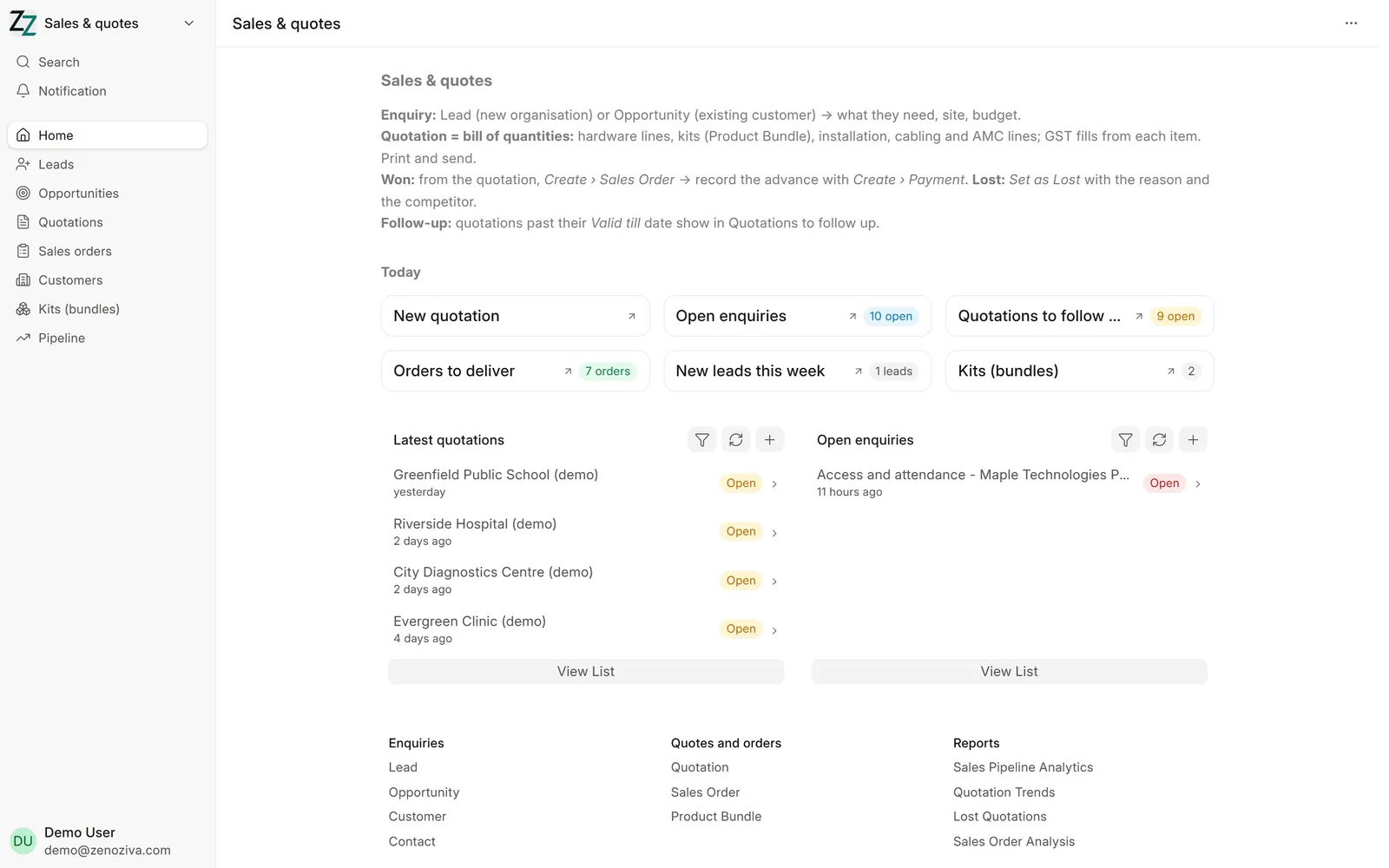
1The Sales & quotes menu#
Today shows open enquiries, Quotations to follow up, Orders to deliver and new leads this week. New quotation starts one straight away.
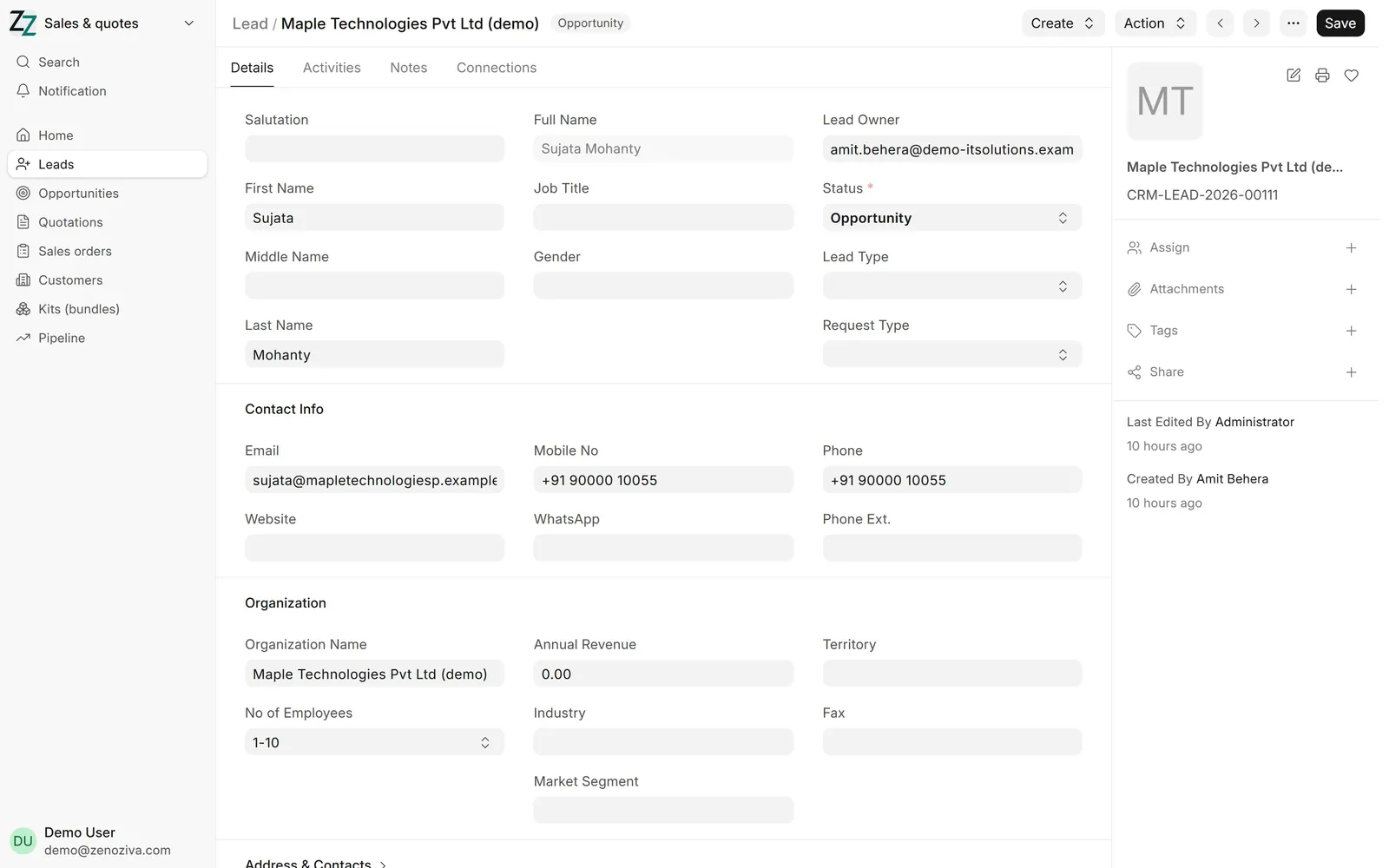
2A lead#
A new organisation that has asked for something: contact person, phone, email, organisation and the salesperson who owns it (Lead Owner). The Status moves on as you reply, quote and win.
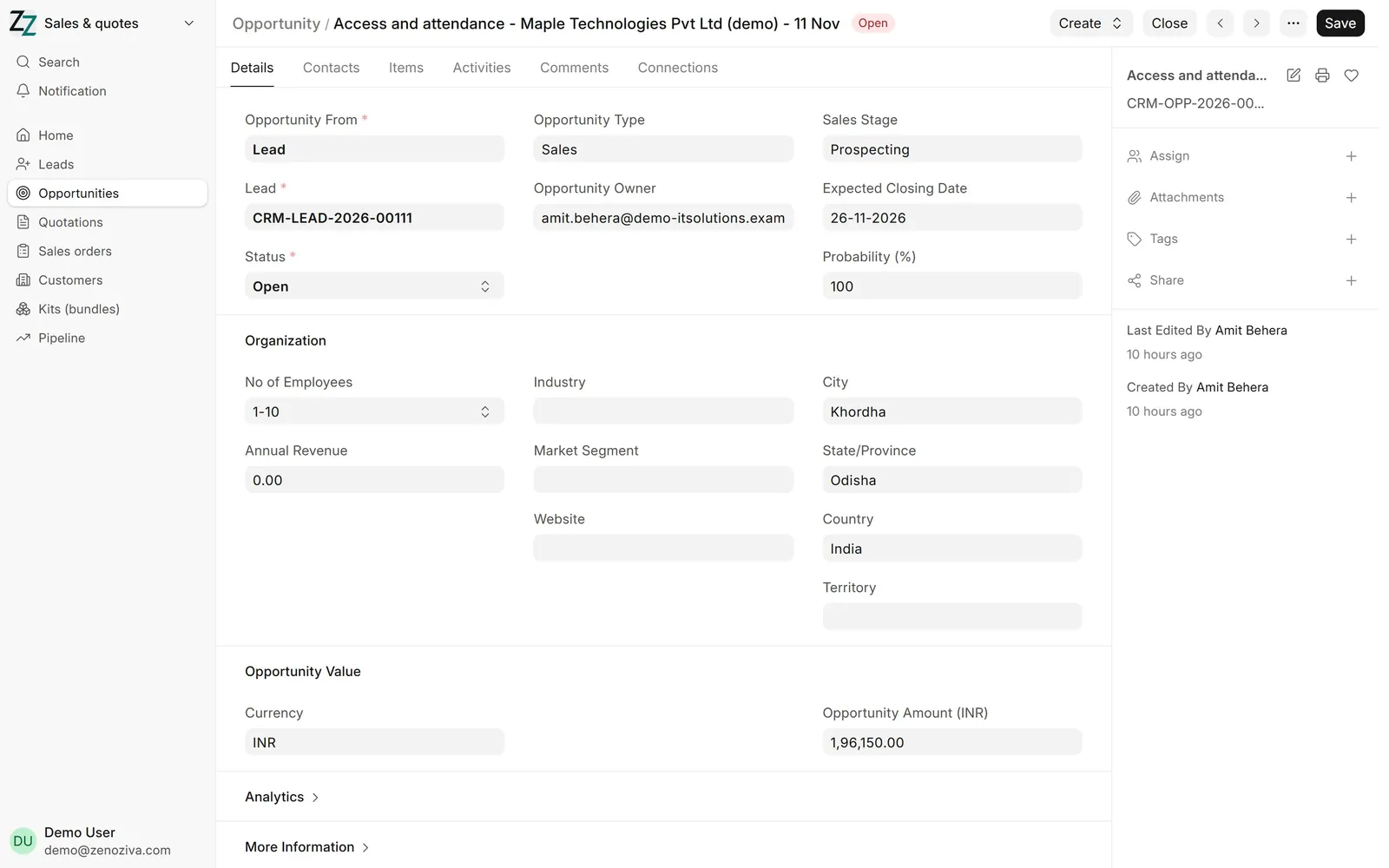
3An opportunity#
What the customer needs: for an existing customer, or created from a lead. Sales Stage, Expected Closing Date, Probability (%) and Opportunity Amount feed the sales pipeline. Create makes the quotation from here.
4The quotation: a bill of quantities#
Each line is an item with its quantity and rate: site survey, an 8-camera CCTV kit on one line, UPS, cable by the box, connectors, conduit, installation per camera and structured cabling by the metre. Valid Till sets the date for follow-up.
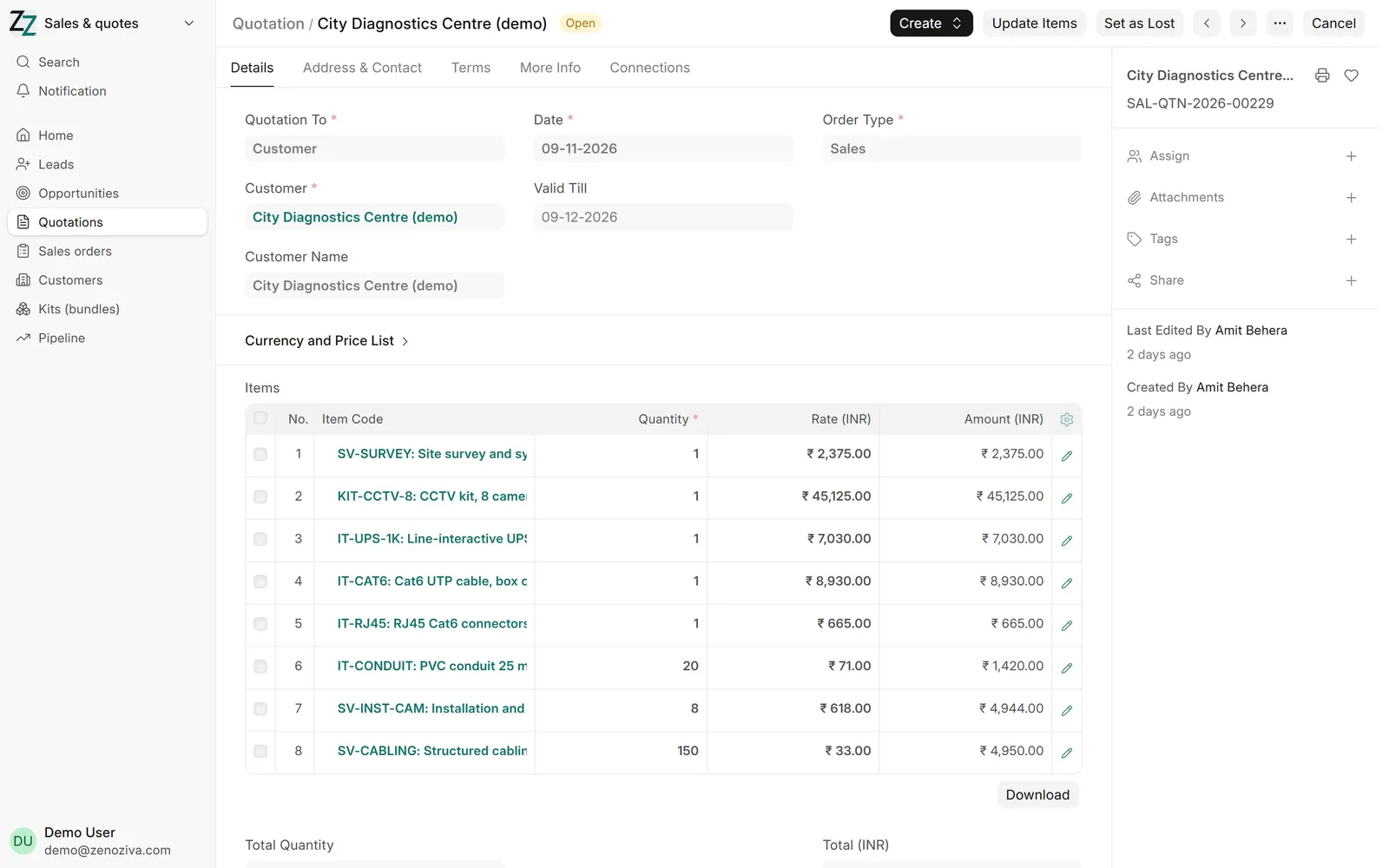
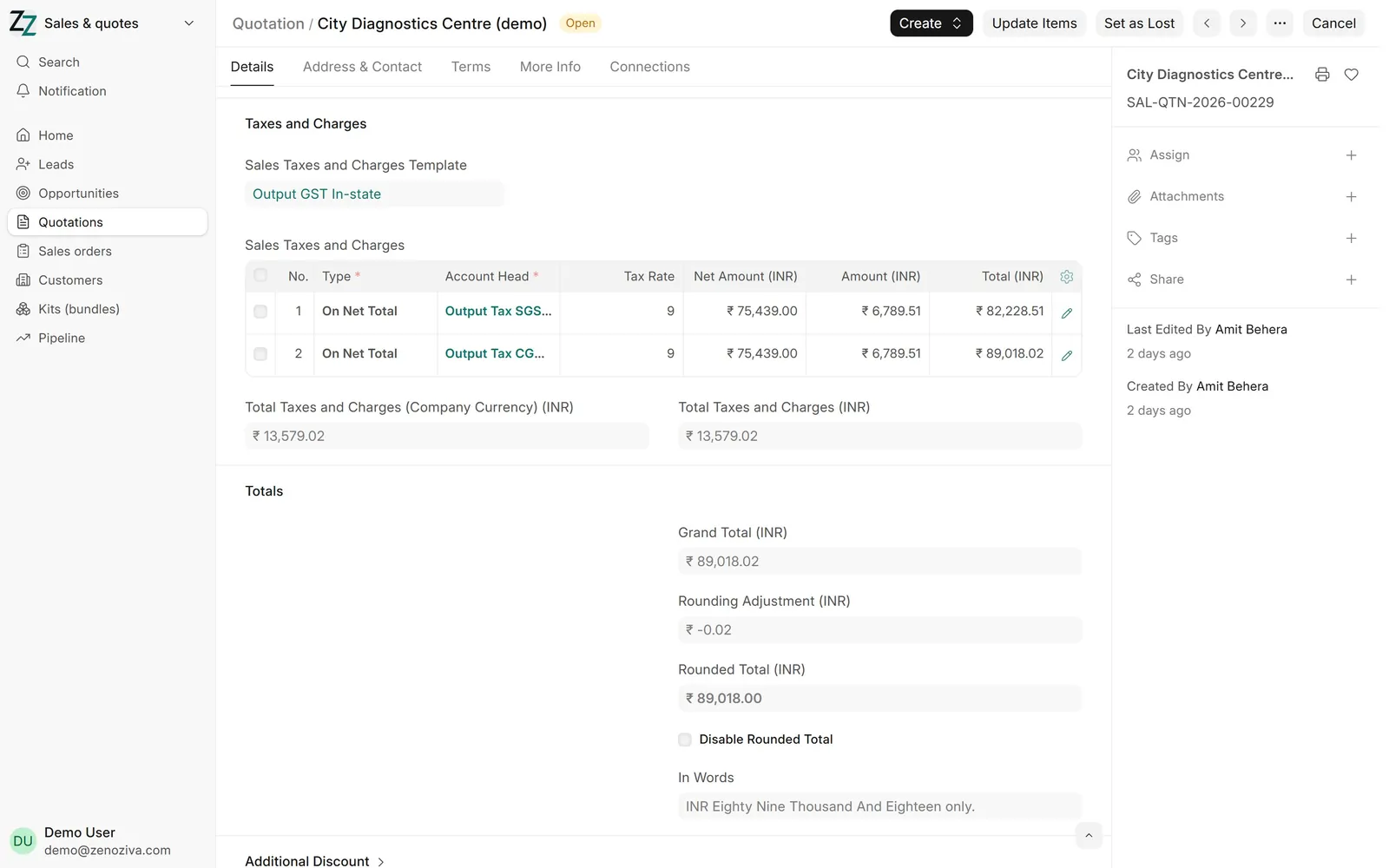
5GST on the quotation#
The tax template fills itself from the customer's state: CGST and SGST within the state, IGST outside it. Totals and the amount in words follow below.
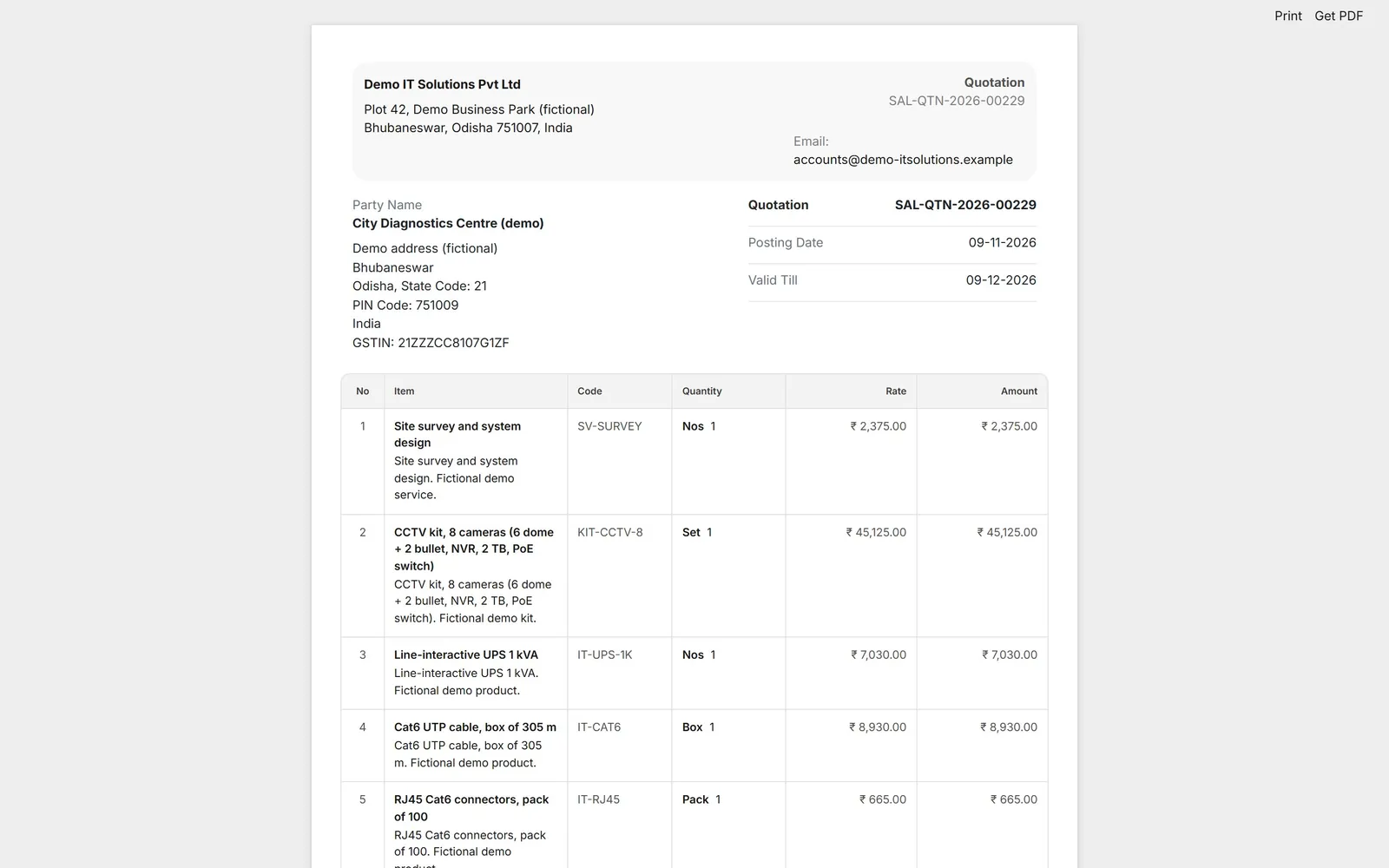
6Print and send#
The print icon opens the quotation on your letterhead, with item descriptions, quantities, rates and totals. Get PDF saves it to send by email or WhatsApp; New Email on the record sends it from the ERP and keeps a copy there.
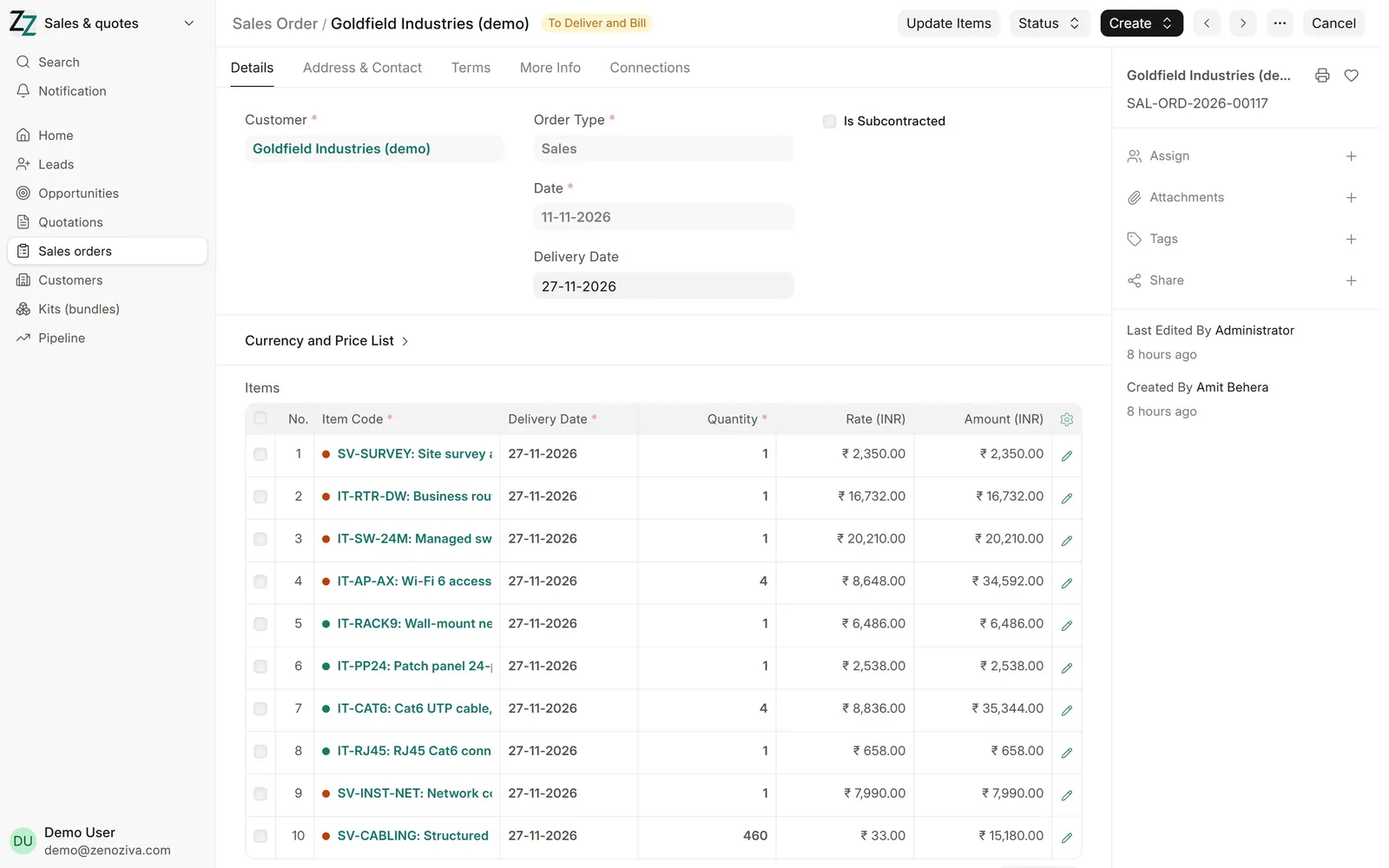
7Won: the sales order#
From the quotation, Create › Sales Order. The order holds the delivery date per line; a coloured dot shows whether each item is in stock. From here, Create makes the purchase request, the project, the delivery and the invoice, and records the advance.
If a job needs more cameras than a kit holds, put all the parts on separate lines instead of the kit plus extra cameras.
8Lost: keep the reason#
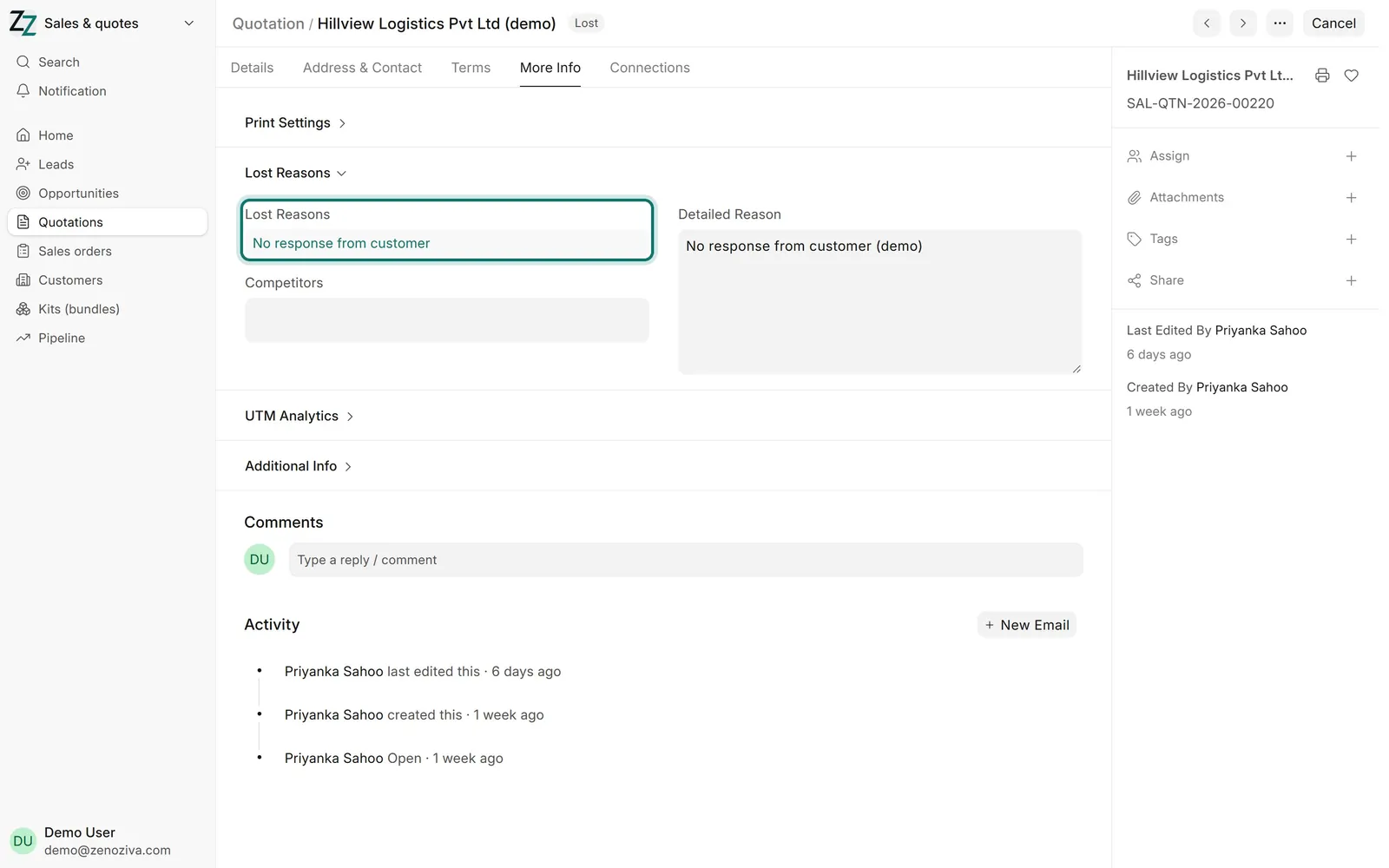
Set as Lost asks for the reason (and the competitor, if known). It shows under More Info › Lost Reasons, and the Lost Quotations report adds them up, so you can see why work is lost.
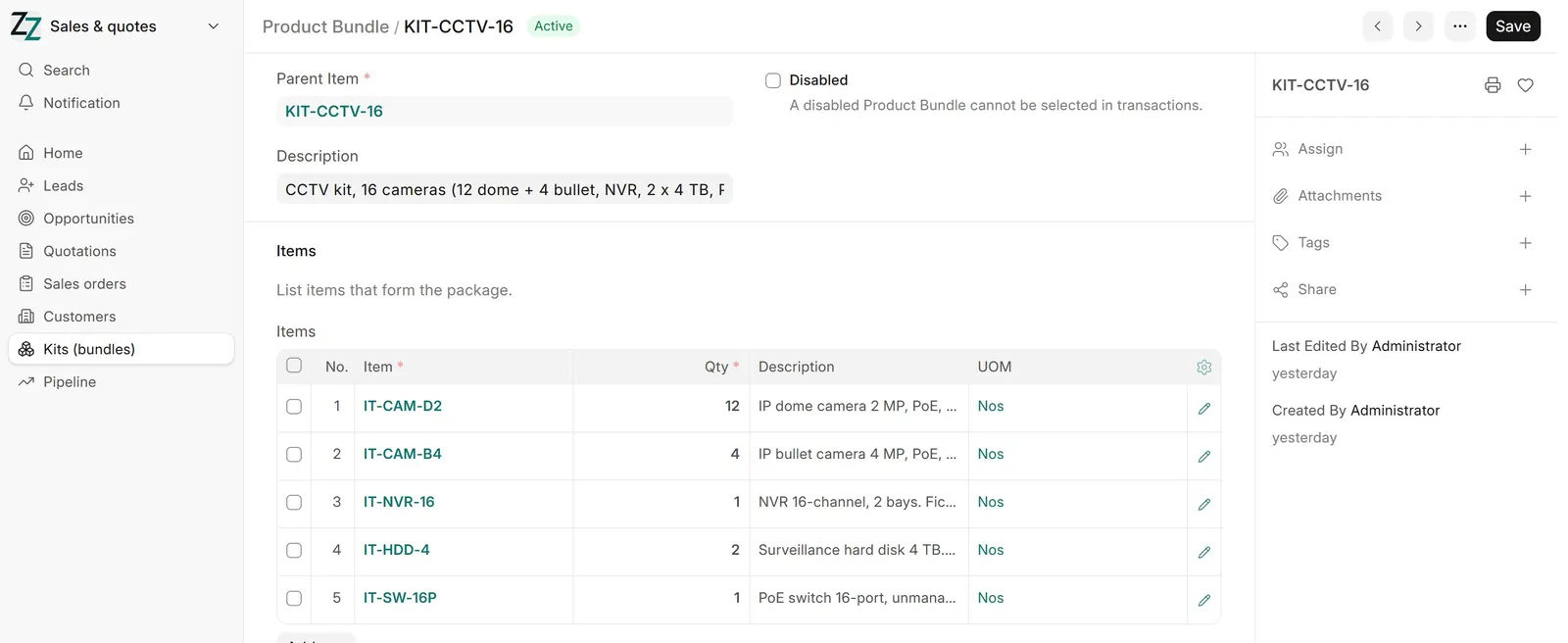
9Kits (bundles)#
A kit is sold as one line but delivered as its parts: here 12 dome cameras, 4 bullet cameras, an NVR, two hard disks and a PoE switch. Stock and serial numbers are kept for each part.