All IT solutions menus
- Getting started
- Business overview
- Sales & quotes
- Purchase
- Stores & serials
- Projects & installation
- Service & AMC
- Accounts & GST
- Team, attendance and payroll
- The Zenoziva HR app
Purchase
For: Purchase team
Buy what the orders need from your distributors, receive it with a serial number for every device, and enter the distributor's bill for GST input credit.
New here? Start with Getting started.
Videos
Buy what the order needs 0:59
From the sales order to purchase orders with your distributors.
Transcript
Hi, I'm Zuzu. You've won an order. Now let's buy the hardware it needs from your distributors.
Open the sales order. The coloured dots show which items are in stock, and which you need to buy.
Click Create, then Purchase Order. Each item shows its usual distributor. Change one if you're buying elsewhere.
Untick the services, like installation and cabling, and click Create Purchase Order. One order is made for each distributor.
Open the order, check it, and submit. Print or email it to the distributor.
That's it! Need a hand? Visit zenoziva.com
Enter the distributor's bill 0:44
Their bill, matched to what you received, ready for GST input credit.
Transcript
Hi, I'm Zuzu. The distributor has sent their bill. Let's enter it, matched to what you received.
In Purchase, open Receipts, and pick the delivery this bill is for.
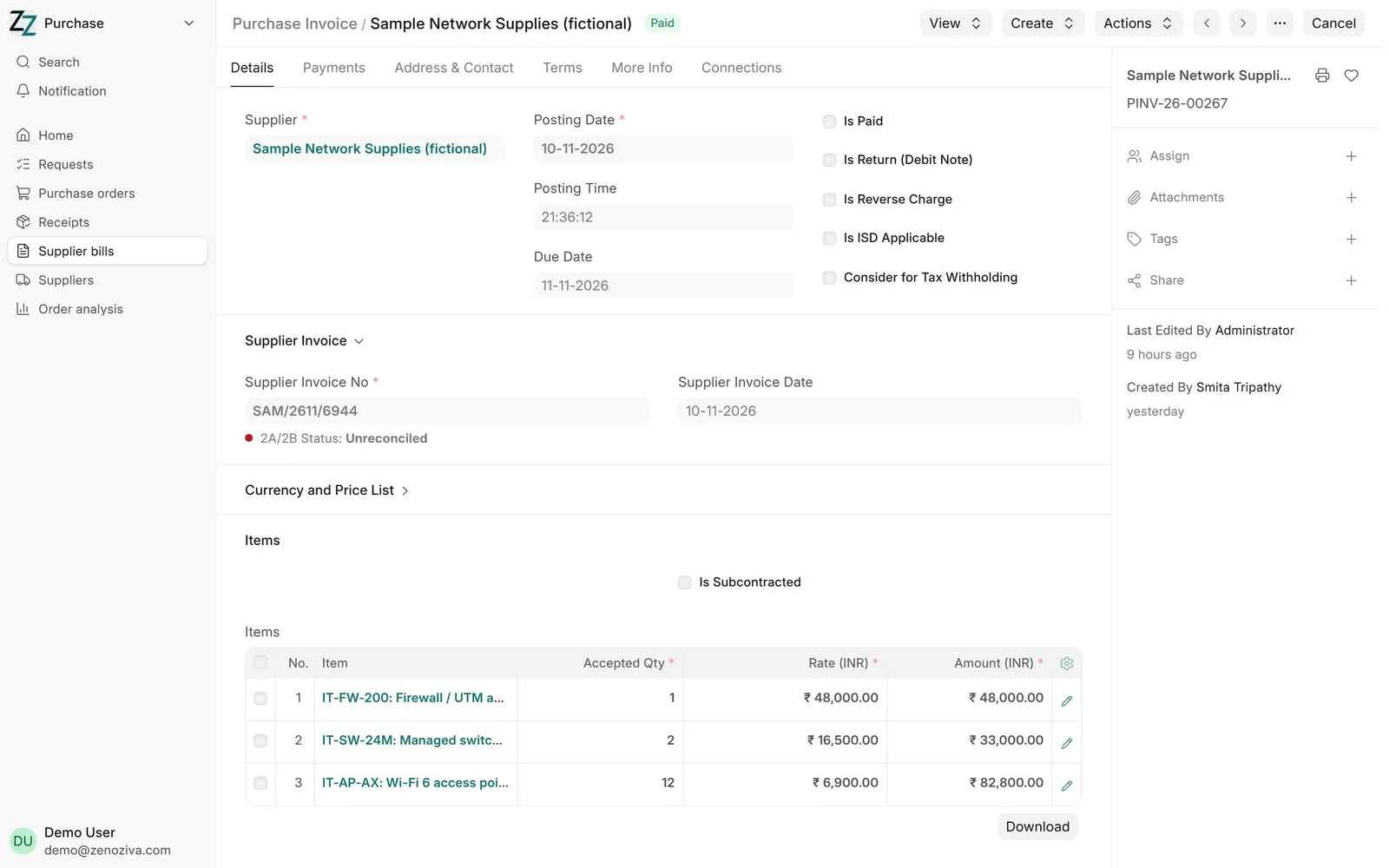
Click Create, then Purchase Invoice. Type the distributor's invoice number and date, exactly as on their bill.
Save and submit. GST input credit is matched on that invoice number; the status below it shows if it appears in your GSTR-2B.
That's it! Need a hand? Visit zenoziva.com
Step by step
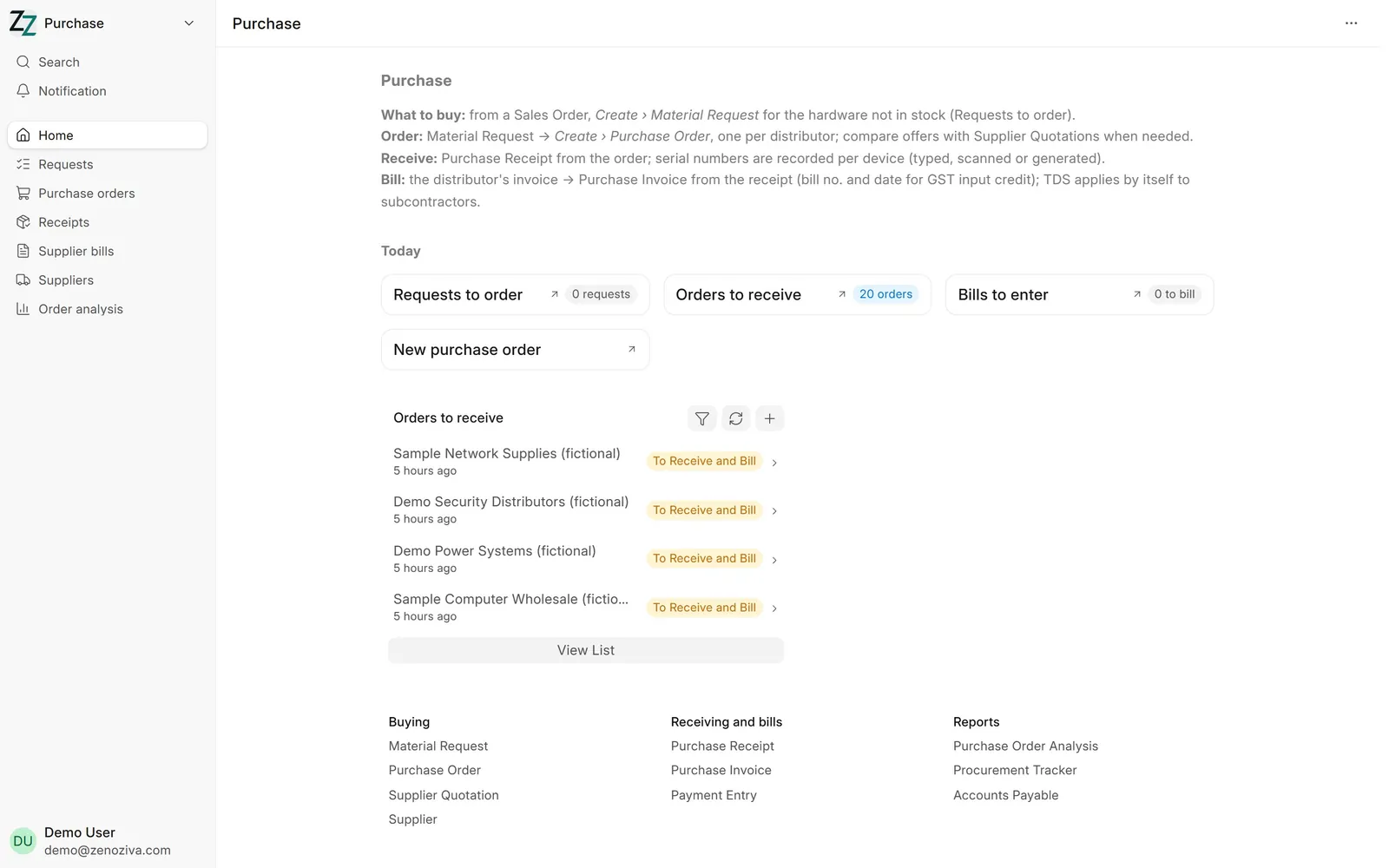
1The Purchase menu#
Requests to order (what the orders need and the store does not have), Orders to receive, Bills to enter, and New purchase order.
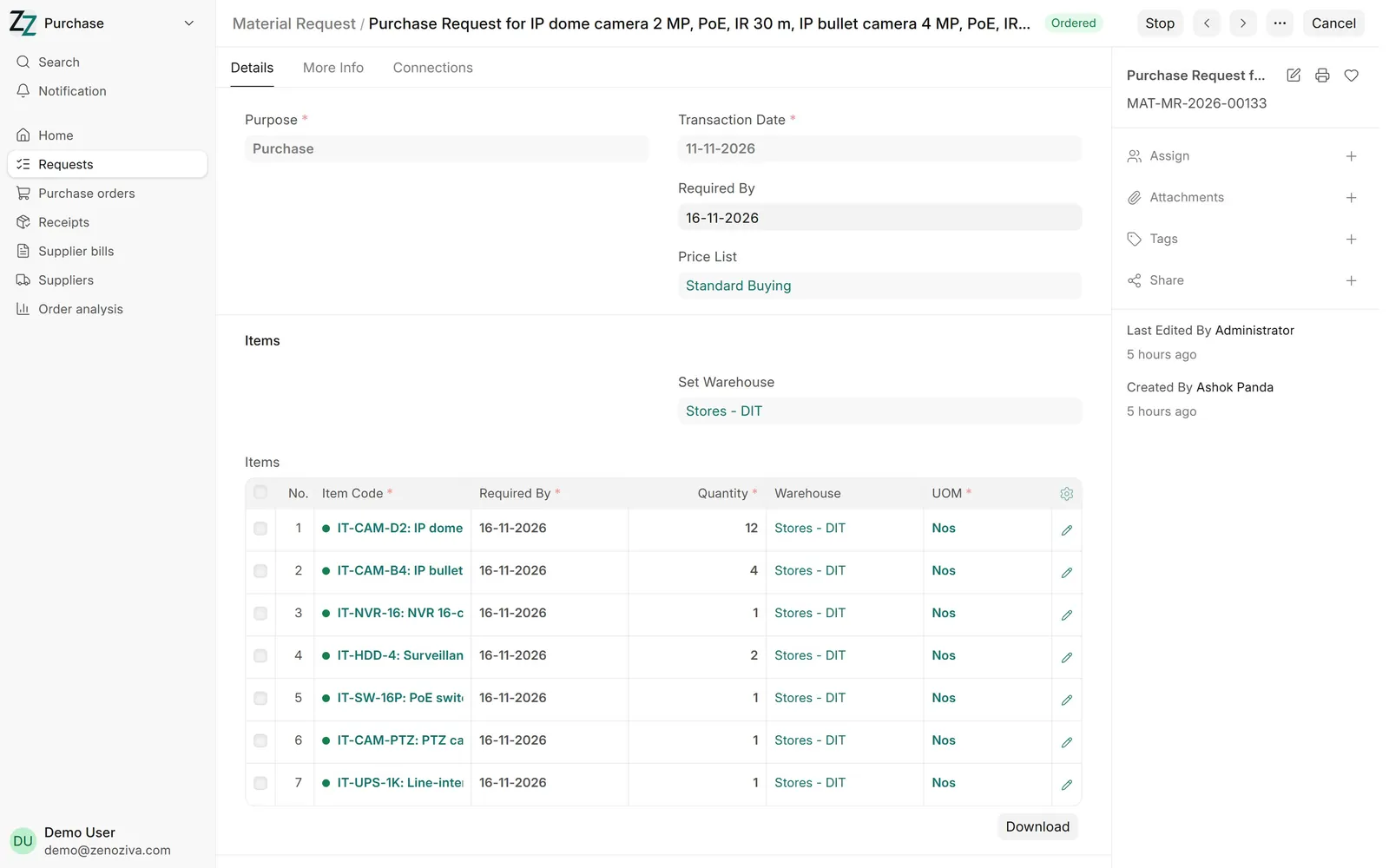
2Purchase request#
Made from a sales order (Create › Material Request) or by the storekeeper: which items, how many, by when. Its status turns to Ordered once purchase orders cover it.
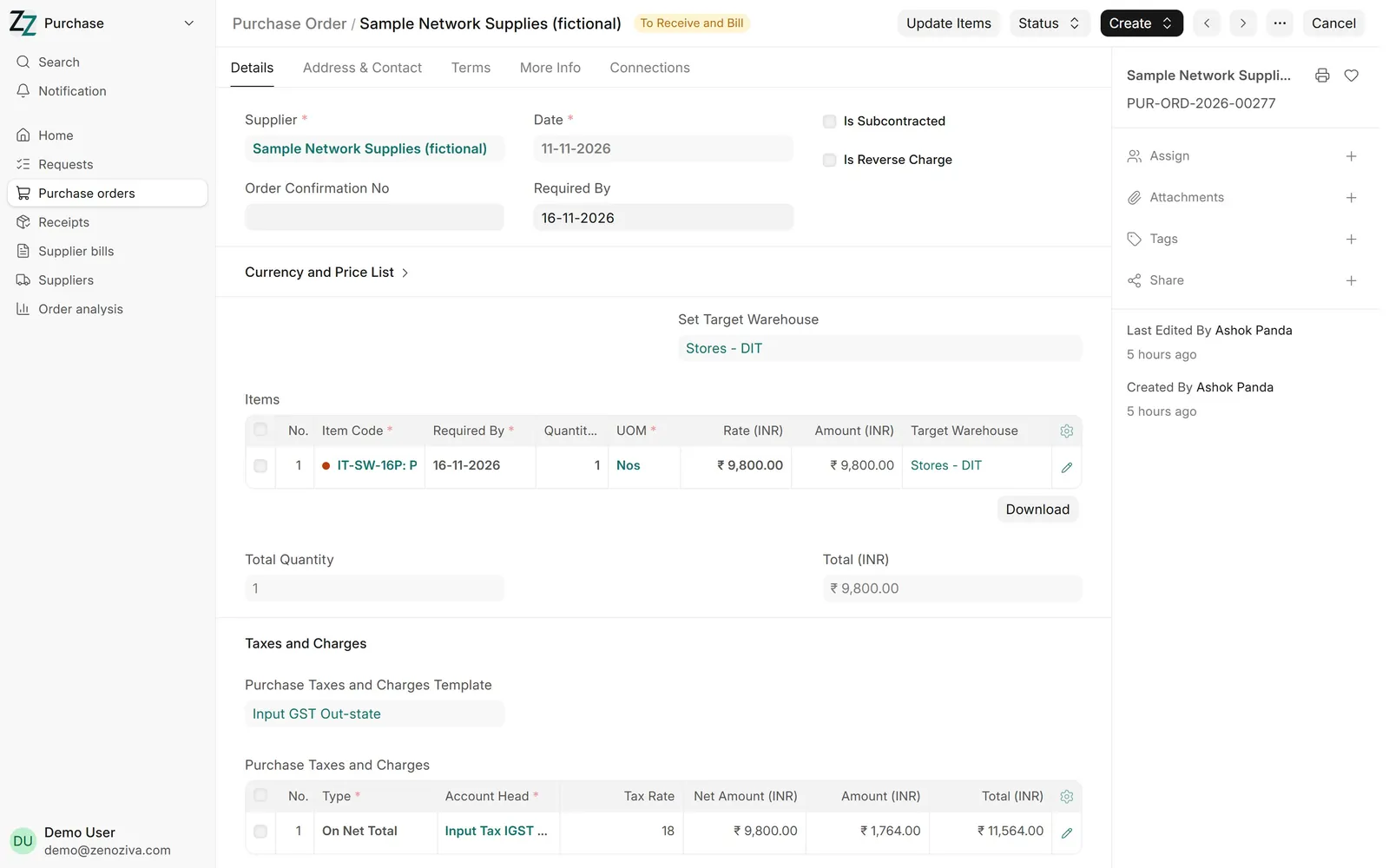
3Purchase order#
From the request, Create › Purchase Order, one per distributor. A distributor in another state gets IGST (Input GST Out-state); one in your state gets CGST and SGST. Print or email it like a quotation.
4Receive the goods#
When the stock arrives, Create › Purchase Receipt from the order. Quantities and prices are copied; change them if the delivery differs. Serialised items need a serial number for each unit: typed, scanned, or made by the system.
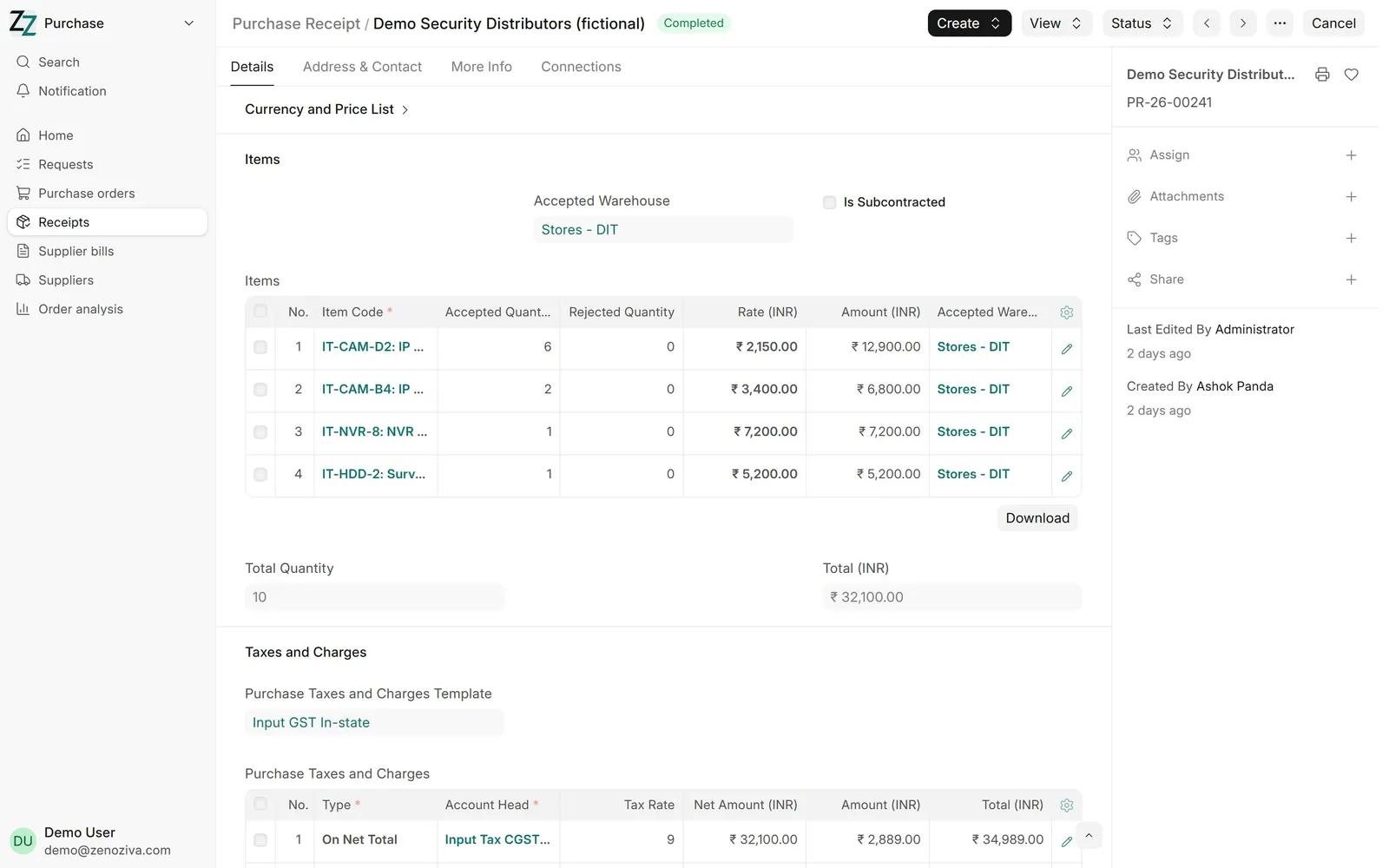
5Serial numbers on the receipt#
Each serialised line keeps its list of serial numbers. From now on every one of these cameras can be traced: where it came from, where it went, and when its warranty ends.
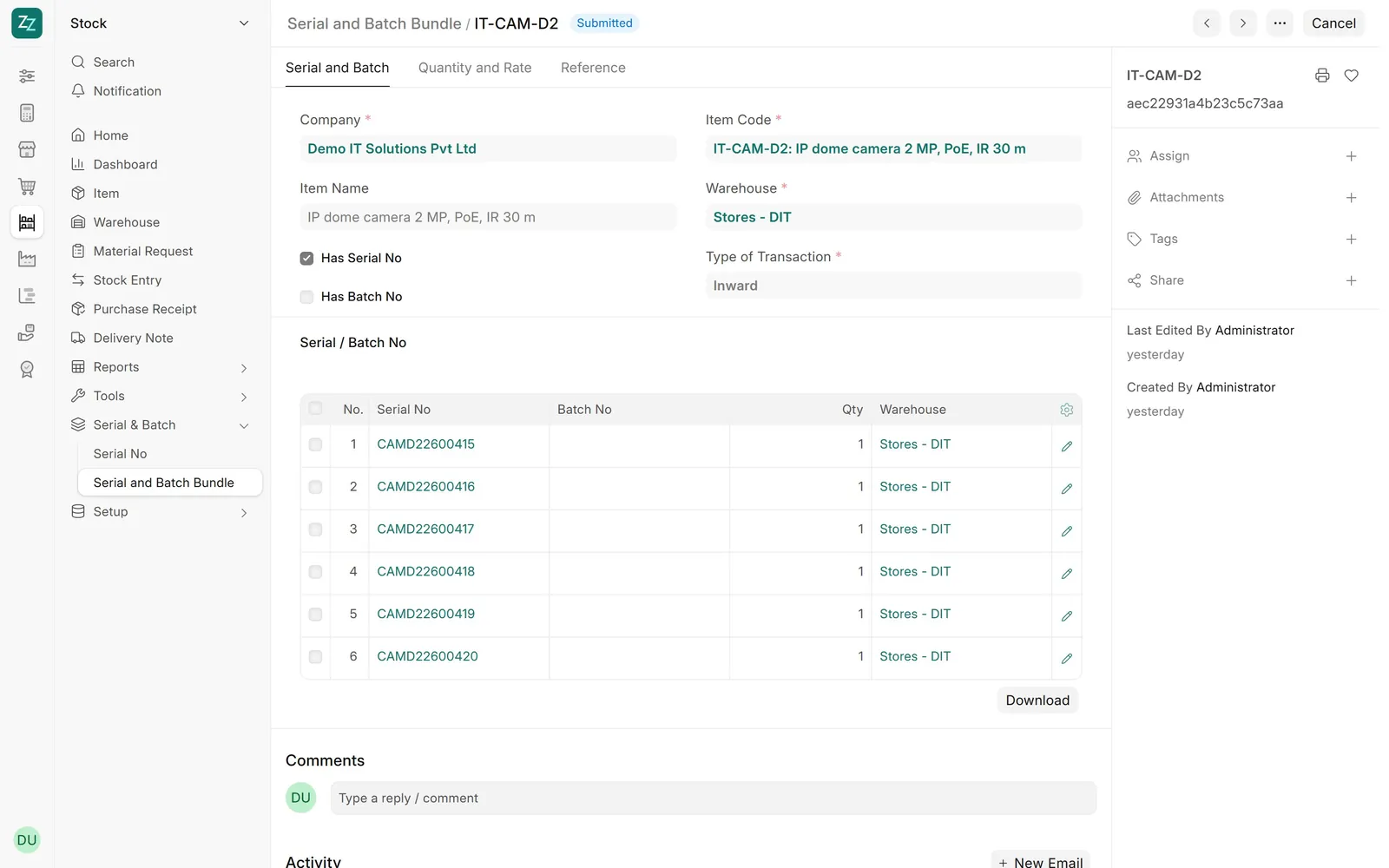
6The distributor's bill#
Create › Purchase Invoice from the receipt. Enter the distributor's Supplier Invoice No and date: GST input credit is matched against them, and the 2A/2B Status shows whether the bill appears in your GSTR-2B. Subcontractors' bills deduct TDS by themselves.