All IT solutions menus
- Getting started
- Business overview
- Sales & quotes
- Purchase
- Stores & serials
- Projects & installation
- Service & AMC
- Accounts & GST
- Team, attendance and payroll
- The Zenoziva HR app
Team, attendance and payroll
For: HR, managers
Check-ins from the biometric device and the phone, attendance by shift, leave, site-travel expenses and monthly payroll.
New here? Start with Getting started.
Videos
Approve leave and expenses 0:49
Staff apply from the phone; you approve here.
Transcript
Hi, I'm Zuzu. Your team asks for leave, and claims site expenses, from their phones. Here's how you approve them.
In Team, open Leave to approve, and pick the request.
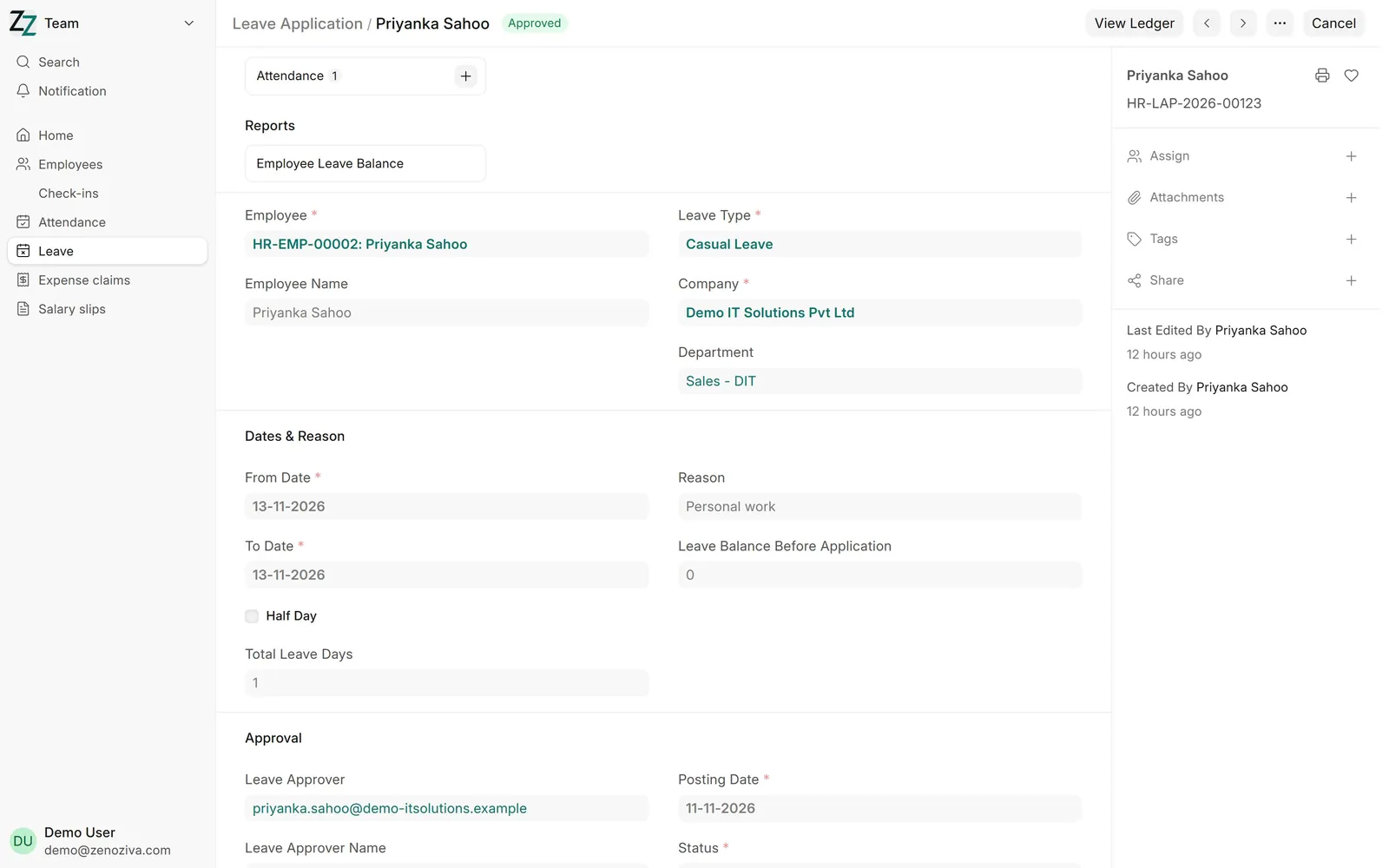
Check the dates and the balance. Set the status to Approved, save, and submit. The employee sees it in the app, and the balance updates.
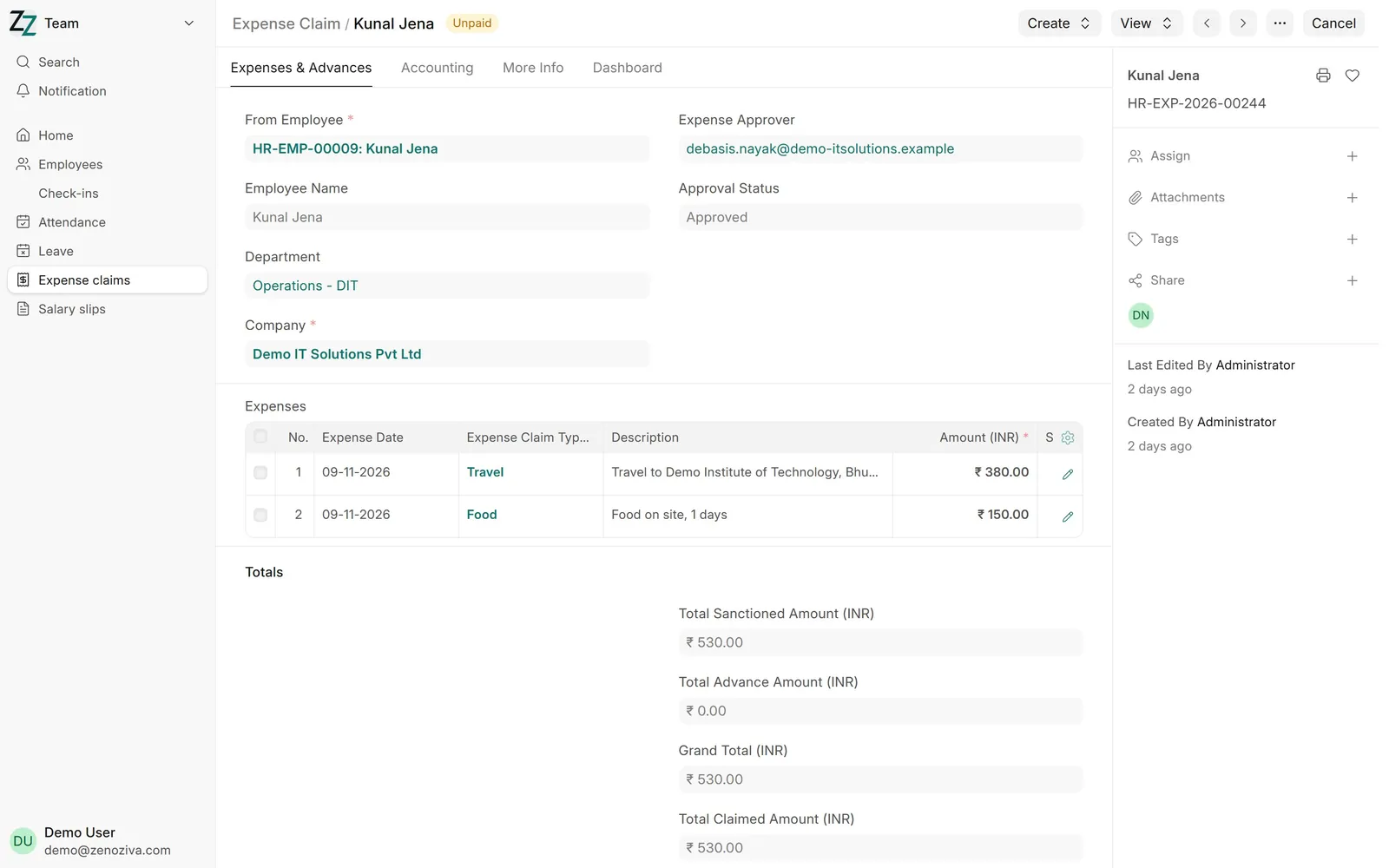
Expense claims work the same way: each line has a date, a type like travel or food, and the amount. The approver checks it, approves it, and submits it for payment.
That's it! Need a hand? Visit zenoziva.com
Attendance and payslips 0:49
From the biometric punch to the month's payslip.
Transcript
Hi, I'm Zuzu. Let's follow a month of attendance, all the way to the payslip.
In Team, Check-ins lists every punch, from the office biometric device or the HR app. The shift turns them into attendance by itself.
Monthly attendance shows everyone, day by day: present, weekly off, holiday, or leave.
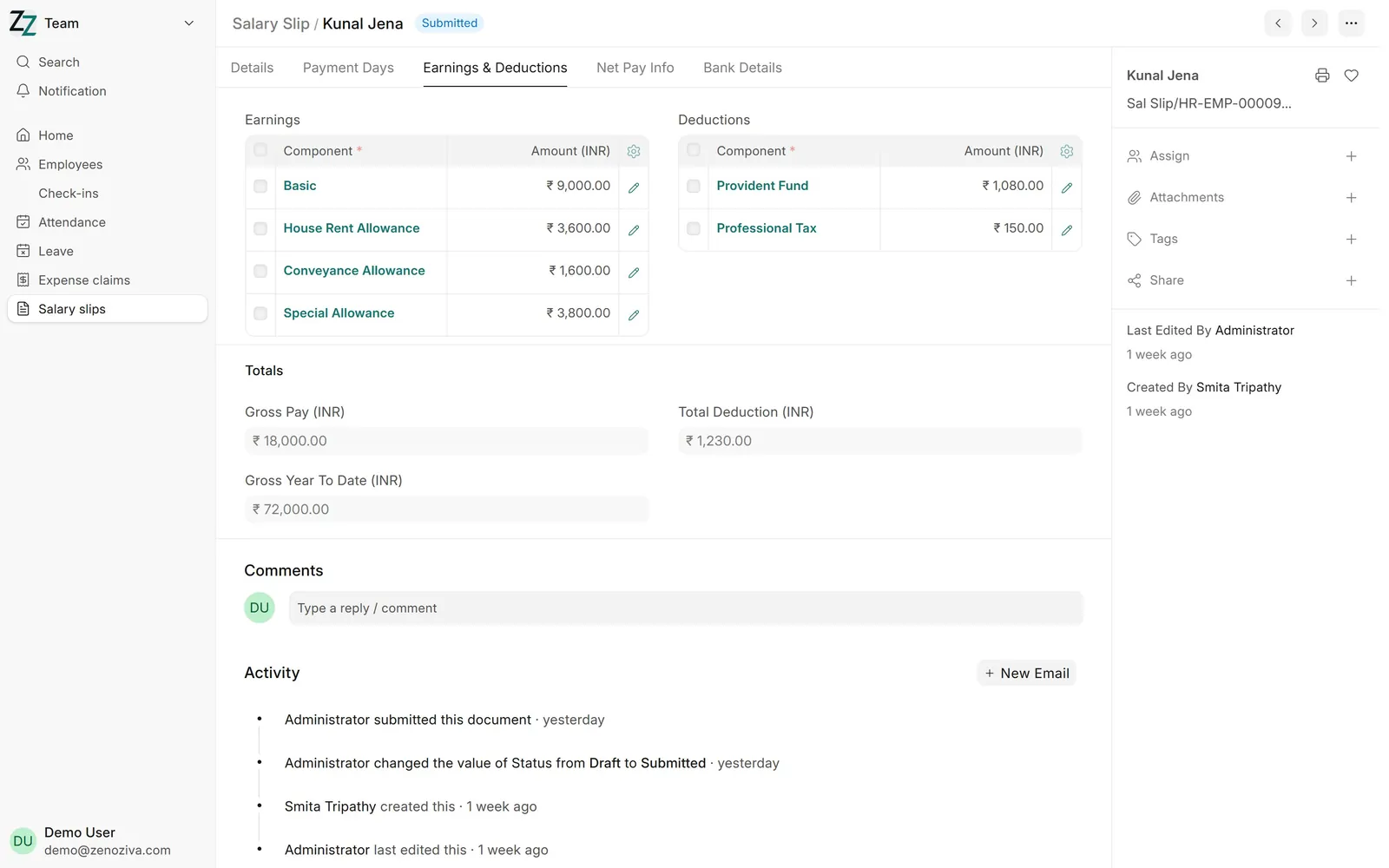
At month end, payroll makes a salary slip for each person, from their salary structure and attendance. Earnings, deductions, and net pay.
Ctrl+P for the printed payslip. Staff also see their own slips in the HR app.
That's it! Need a hand? Visit zenoziva.com
The HR app on your phone 0:51
Check in, apply for leave, claim expenses, see your payslips.
Transcript
Hi, I'm Zuzu. Everyone in your team can do their HR work from their phone. Let me show you.
On the phone, open your company's ERP address followed by /hrms, and sign in. Add it to the home screen, and it works like an app.
The home screen has quick links: attendance and shift requests, leave, expenses, advances, and your salary slips. Where your company allows it, you also check in and out here.
Leaves shows your balance and the coming holidays. Tap Request a Leave to apply. Your manager approves it.
For site travel or food, tap Claim an Expense, and add a photo of the bill.
And Salary lists your payslips, month by month.
That's it! Need a hand? Visit zenoziva.com
Step by step
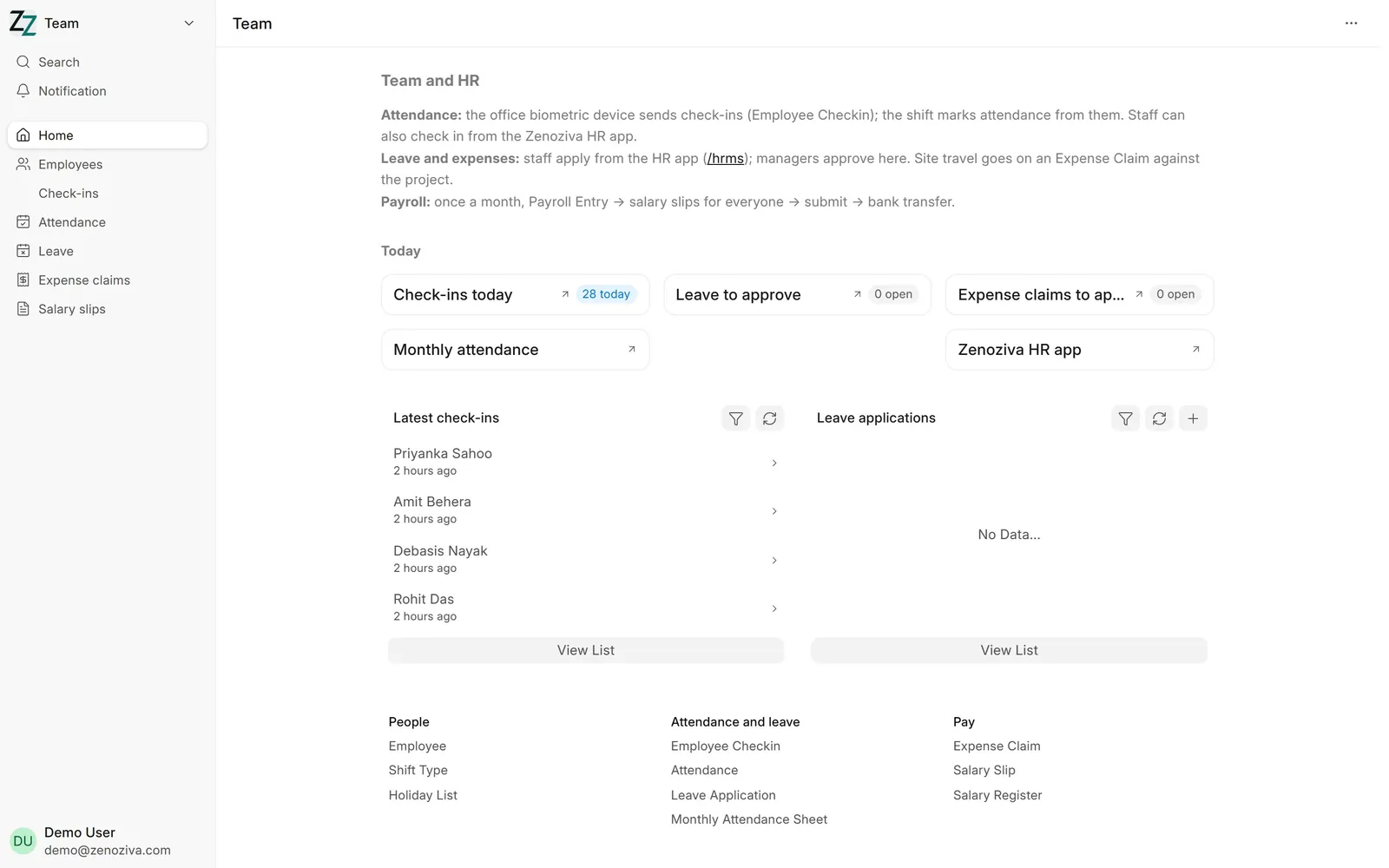
1The Team menu#
Check-ins today, Leave to approve, Expense claims to approve, Monthly attendance and a link to the Zenoziva HR app.
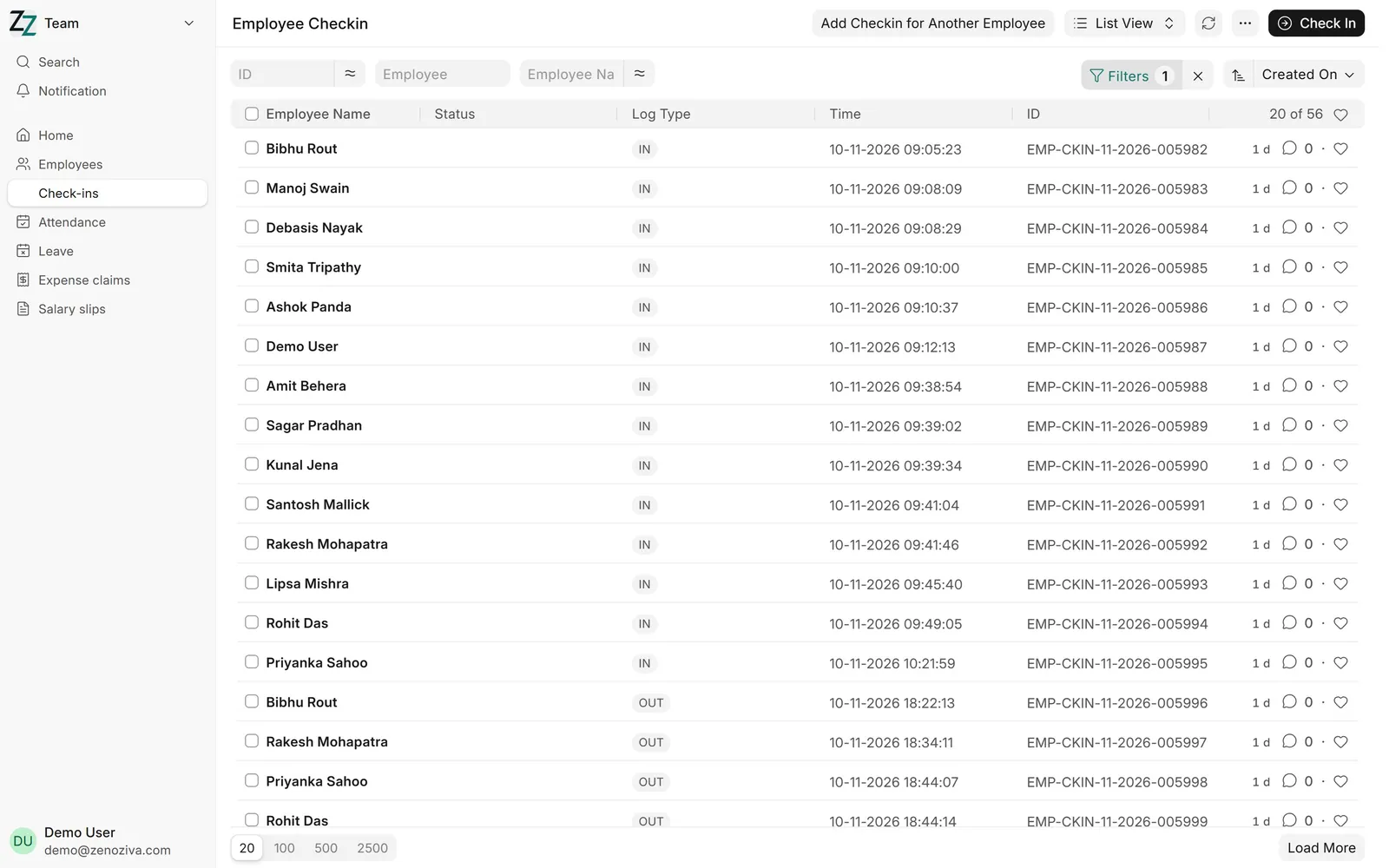
2Check-ins#
Every punch from the office biometric device or the HR app, with time and direction. The shift turns them into attendance by itself.
The biometric device sends check-ins through its own connection, set up with your device. On the demo they are written directly.
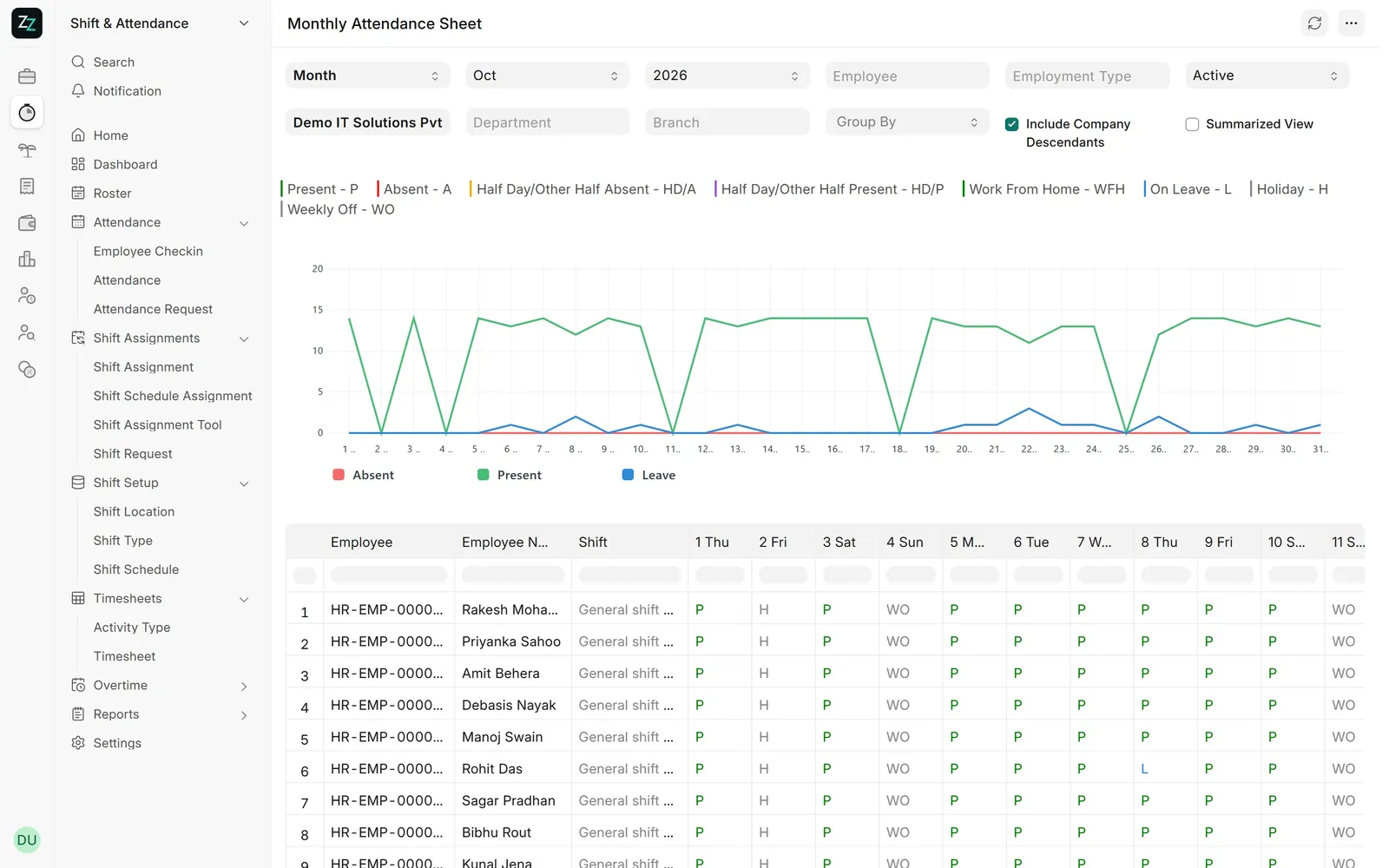
3Monthly attendance#
One row per employee, one column per day: present, holiday, weekly off and leave, with a chart of the month.
4Leave#
Staff apply from the HR app; the leave approver approves here or in the app. Balances update by themselves.
5Site travel and food#
Expense claims for travel and food on site, each line with a date, type and amount, approved by the employee's expense approver.
6Salary slip#
Each month payroll makes a salary slip for every employee from their salary structure and attendance: earnings, deductions and net pay. Staff see their own slips in the HR app.